

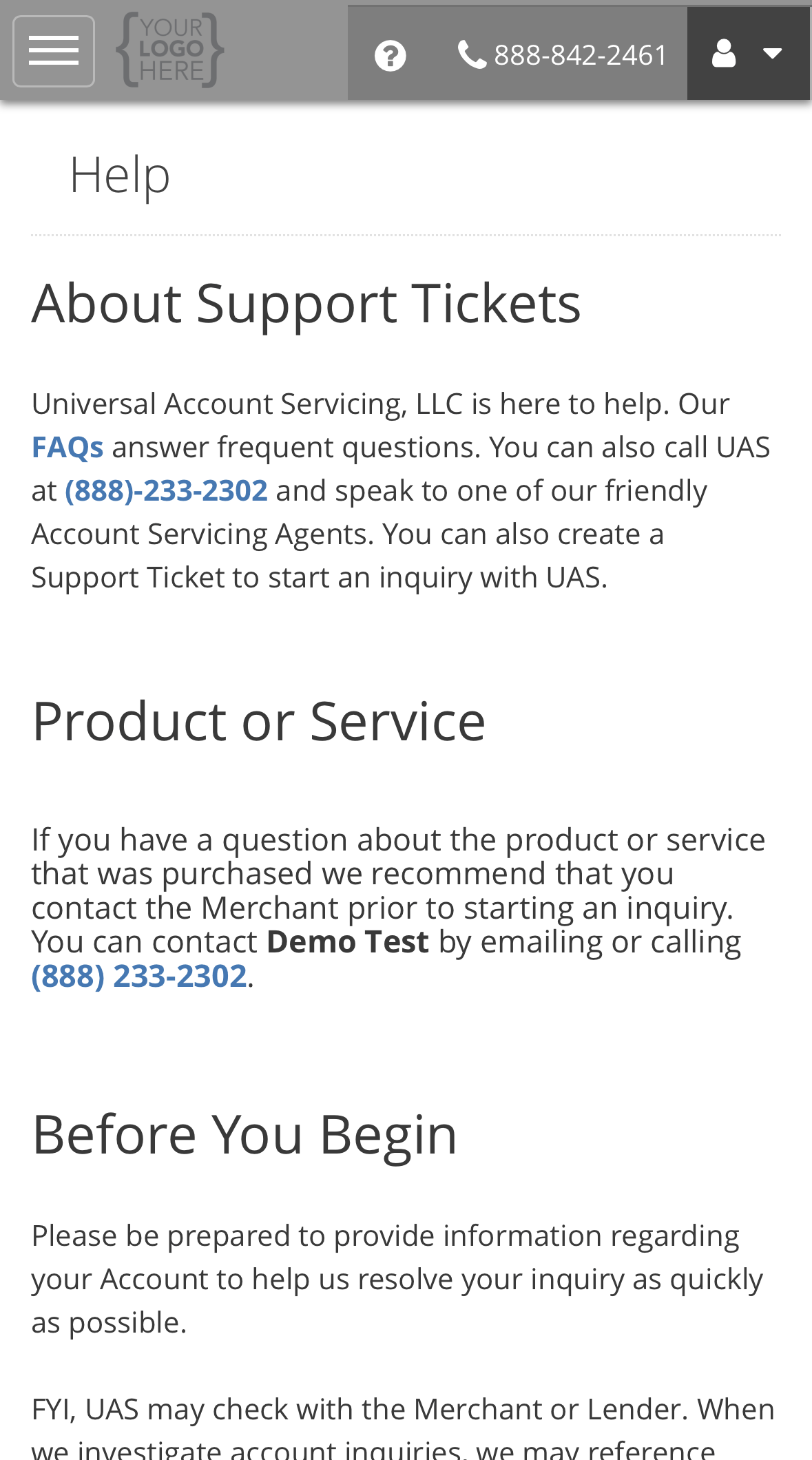
Before you start
Have your account details to hand, and a verified phone number or email address on your account. That is how we come back to you.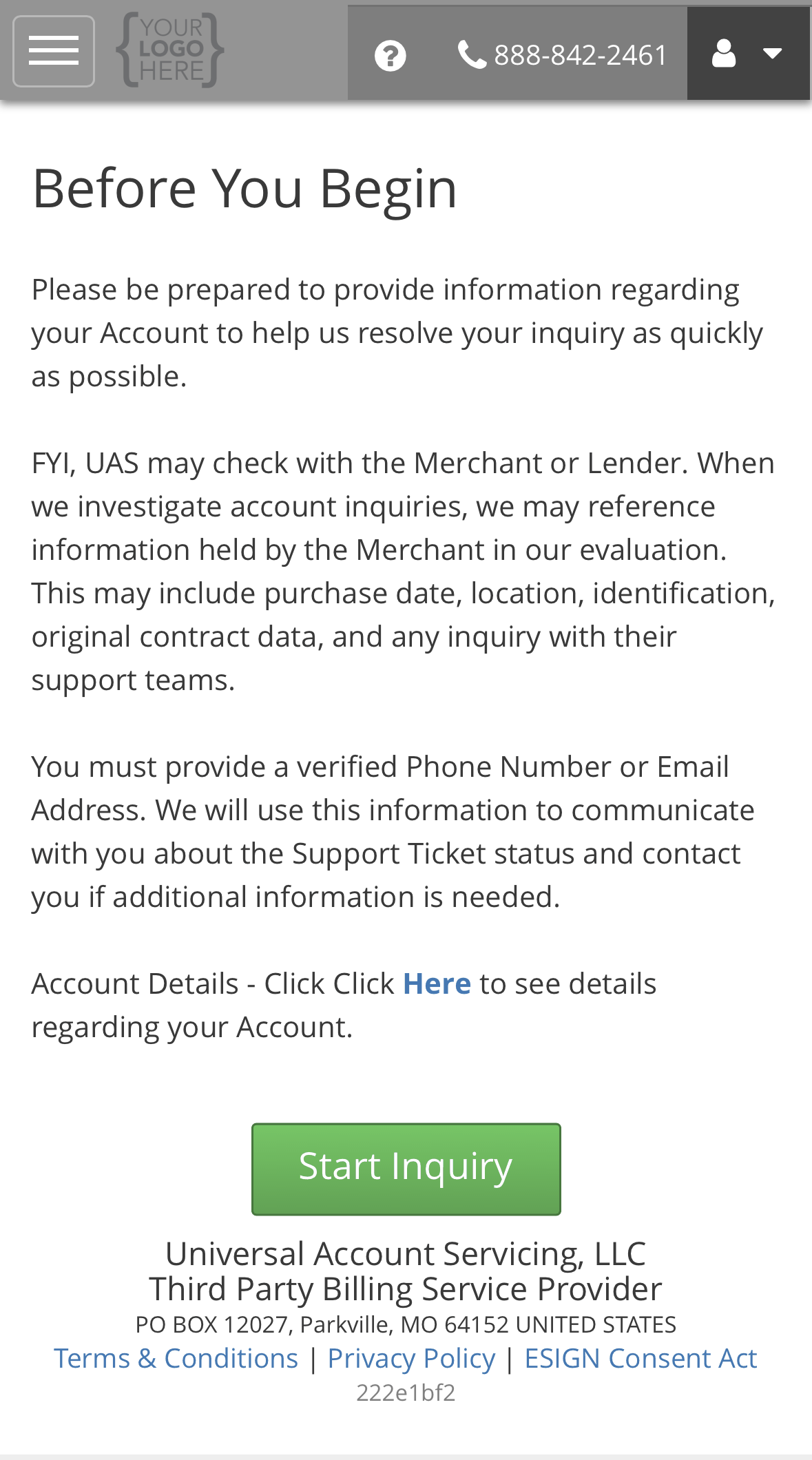
We may check with the business you bought from. When we look into an account question we can
reference what they hold: purchase date, location, identification, the original contract, and any
contact you have had with their support team.
Choosing a request type
The request type decides who looks at it, so pick the closest one. You can also type in Find what you need here to filter the list. Each type has its own page explaining the questions its form asks and why.Billing
We handle these ourselves.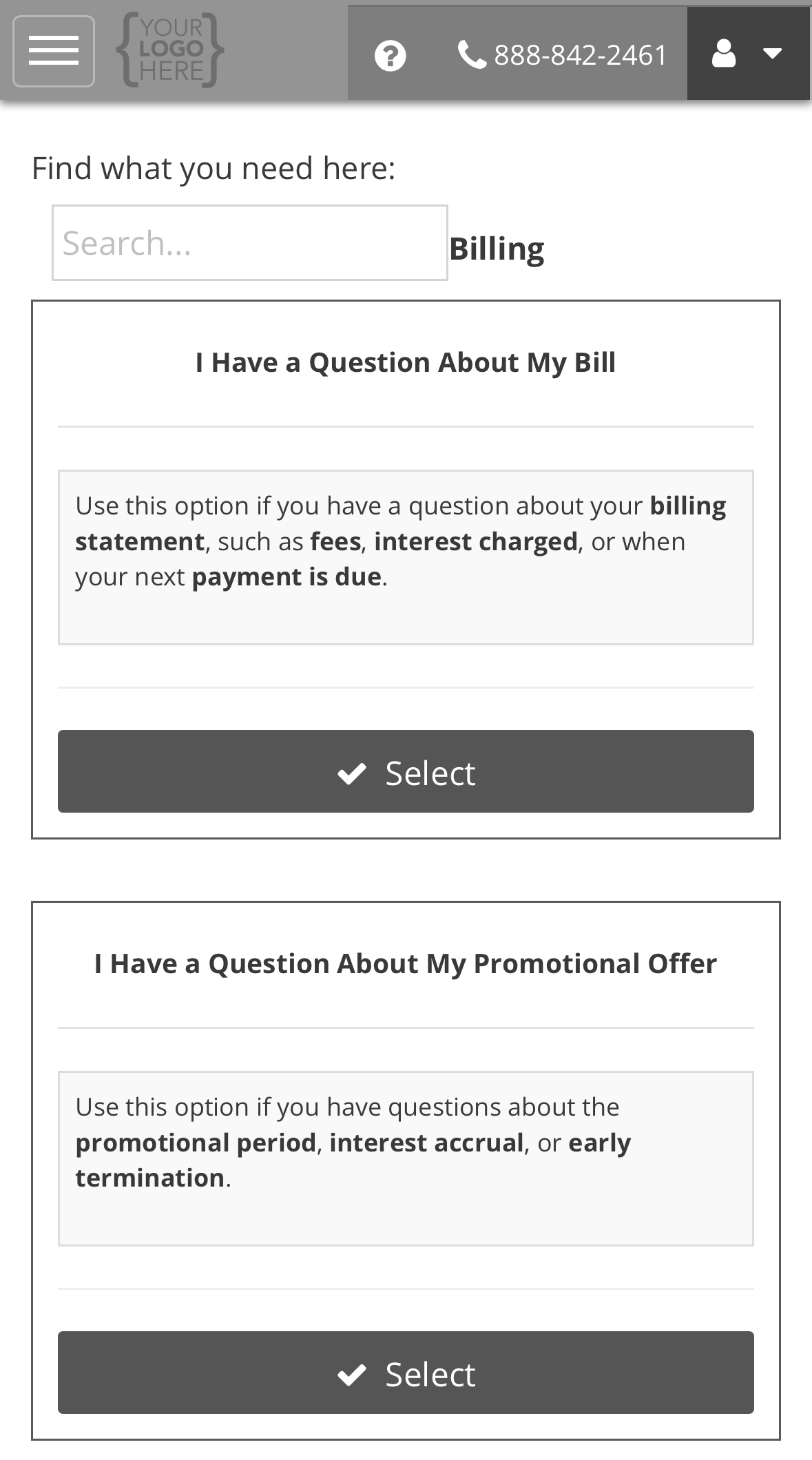
Product or service
Questions about what you bought. Contact the business you bought from first. They hold the goods, the warranty and the returns process. Their name and contact details are shown at the top of this section.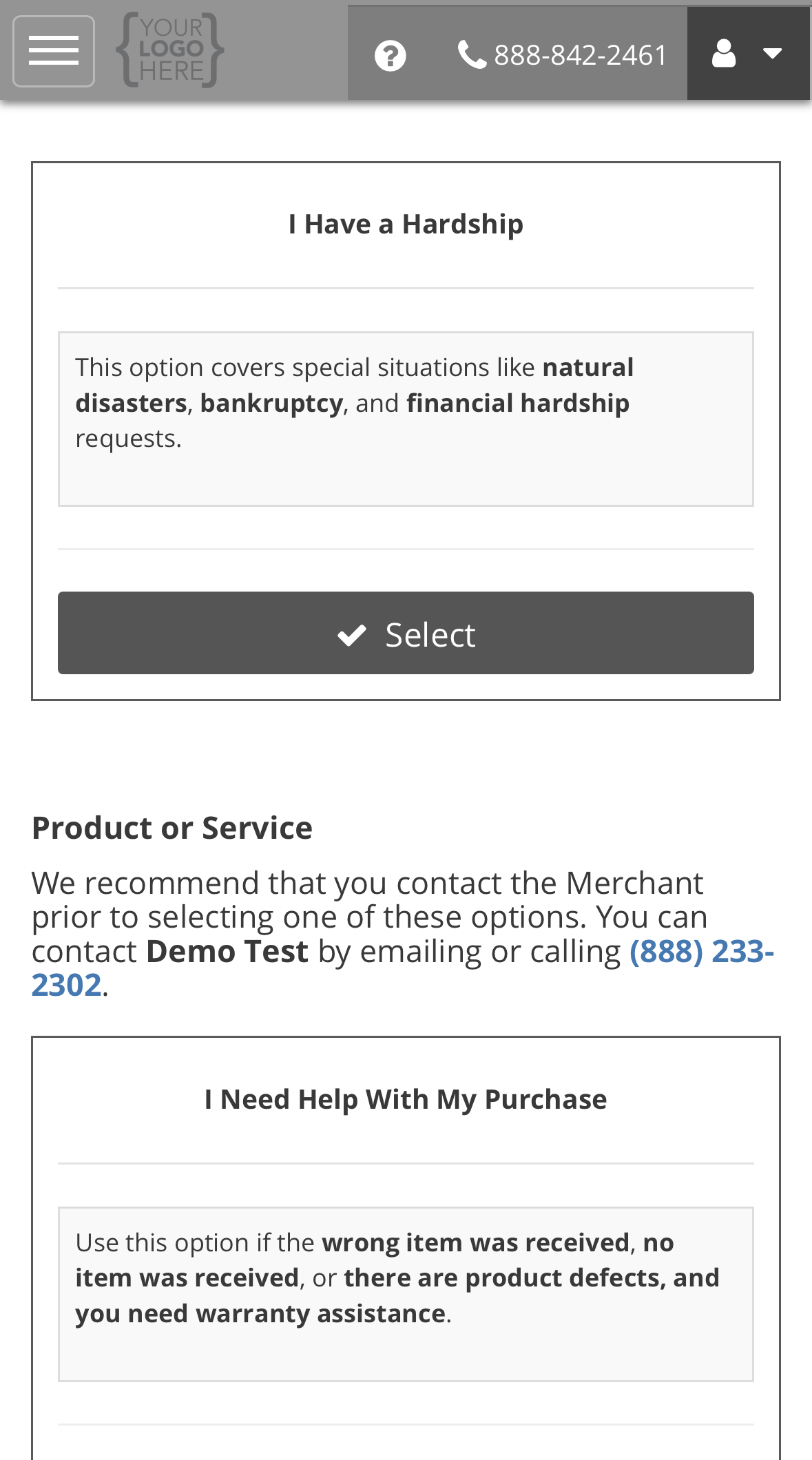
Identity theft
Example: opening a request
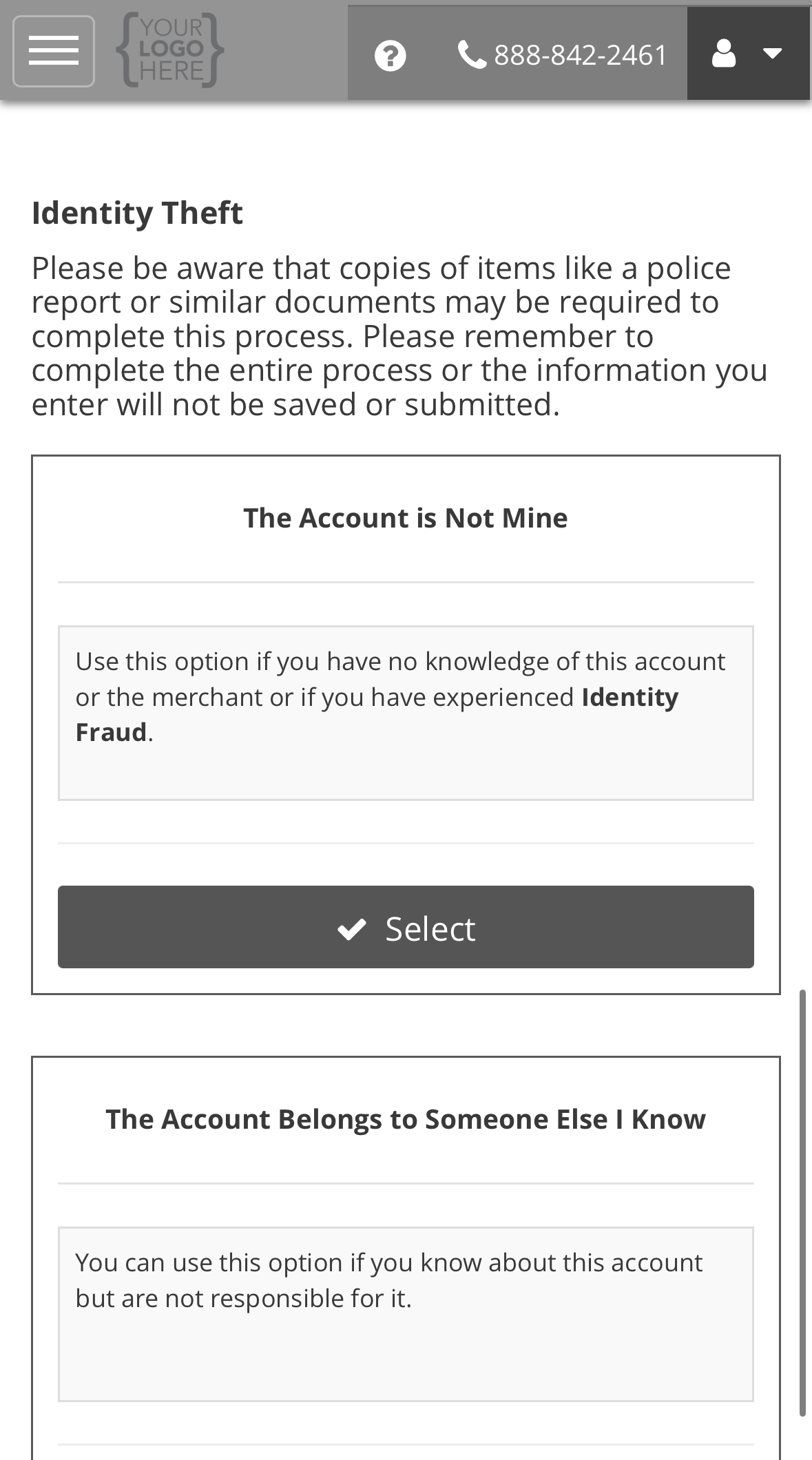
Every request type works the same way. Only the questions on the form change. This example is a Return or Cancel request. The page for each type lists its own questions.1
Select the request type
Select Select on the type you want. It turns green and reads Selected, and the form
opens.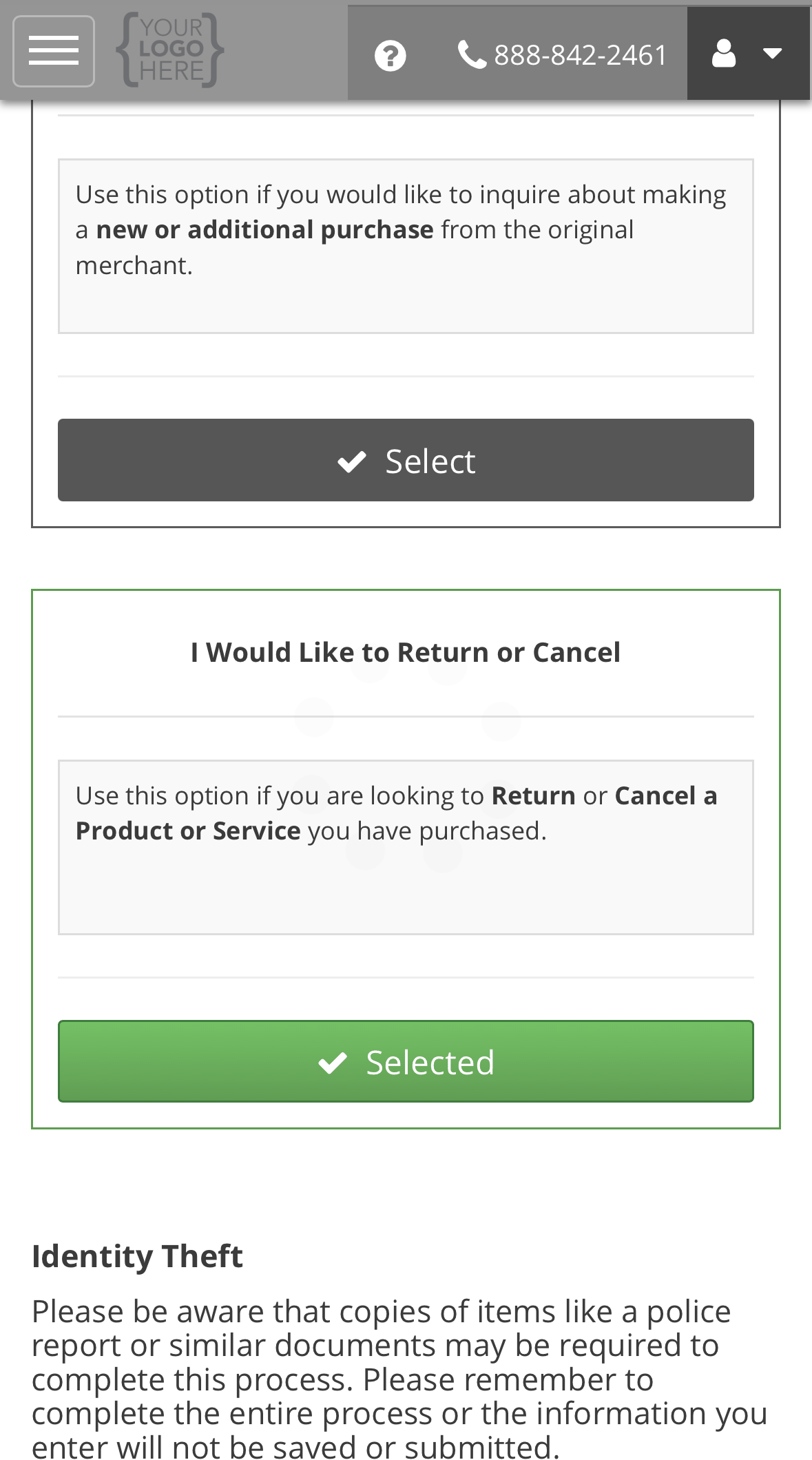
2
Read the form's notes
Some forms open with an Important note. This one asks you to contact the seller first.
Questions marked with a red * are required. Select the i beside a question for a hint.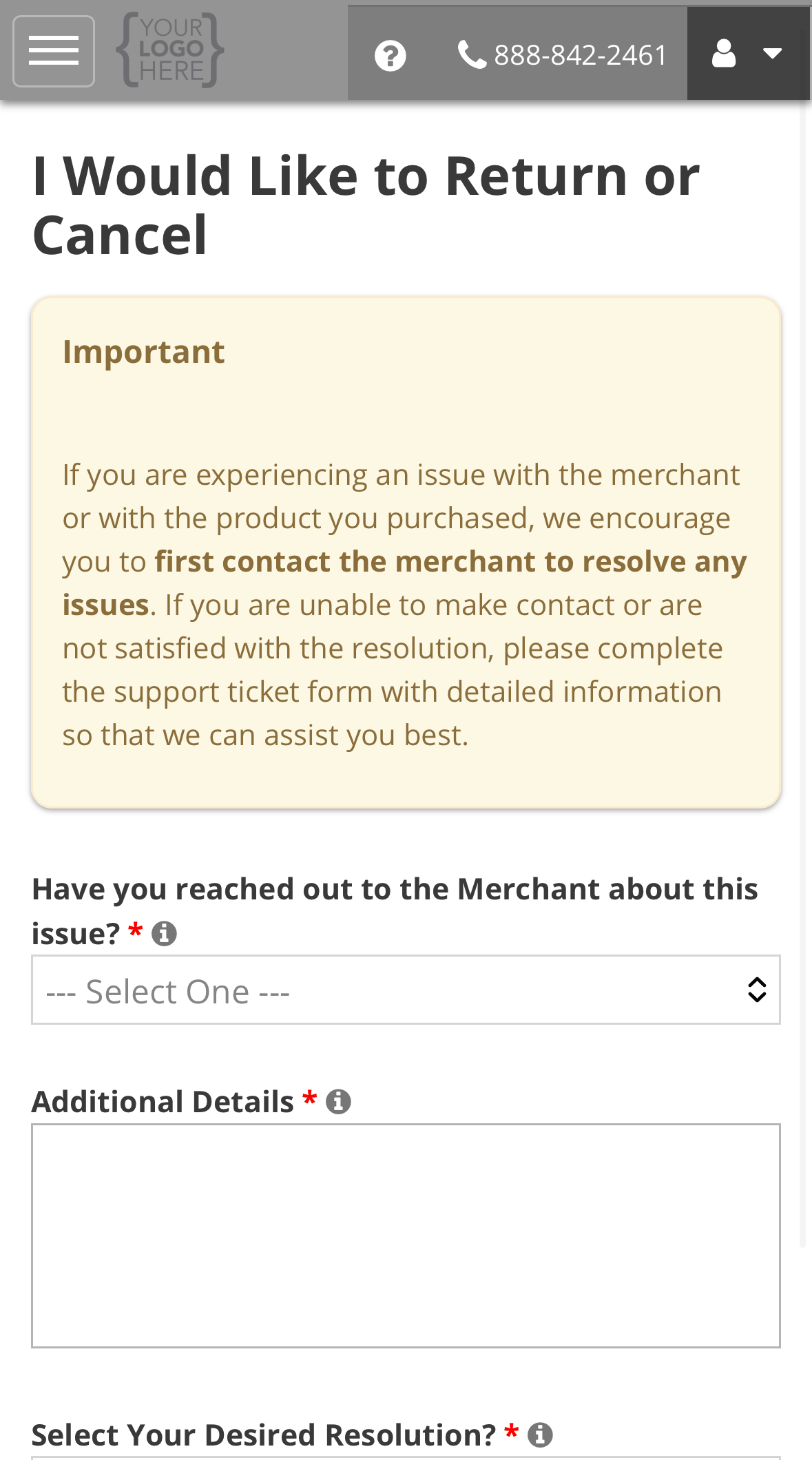
3
Answer the questions and submit
Answer each question, then select Submit.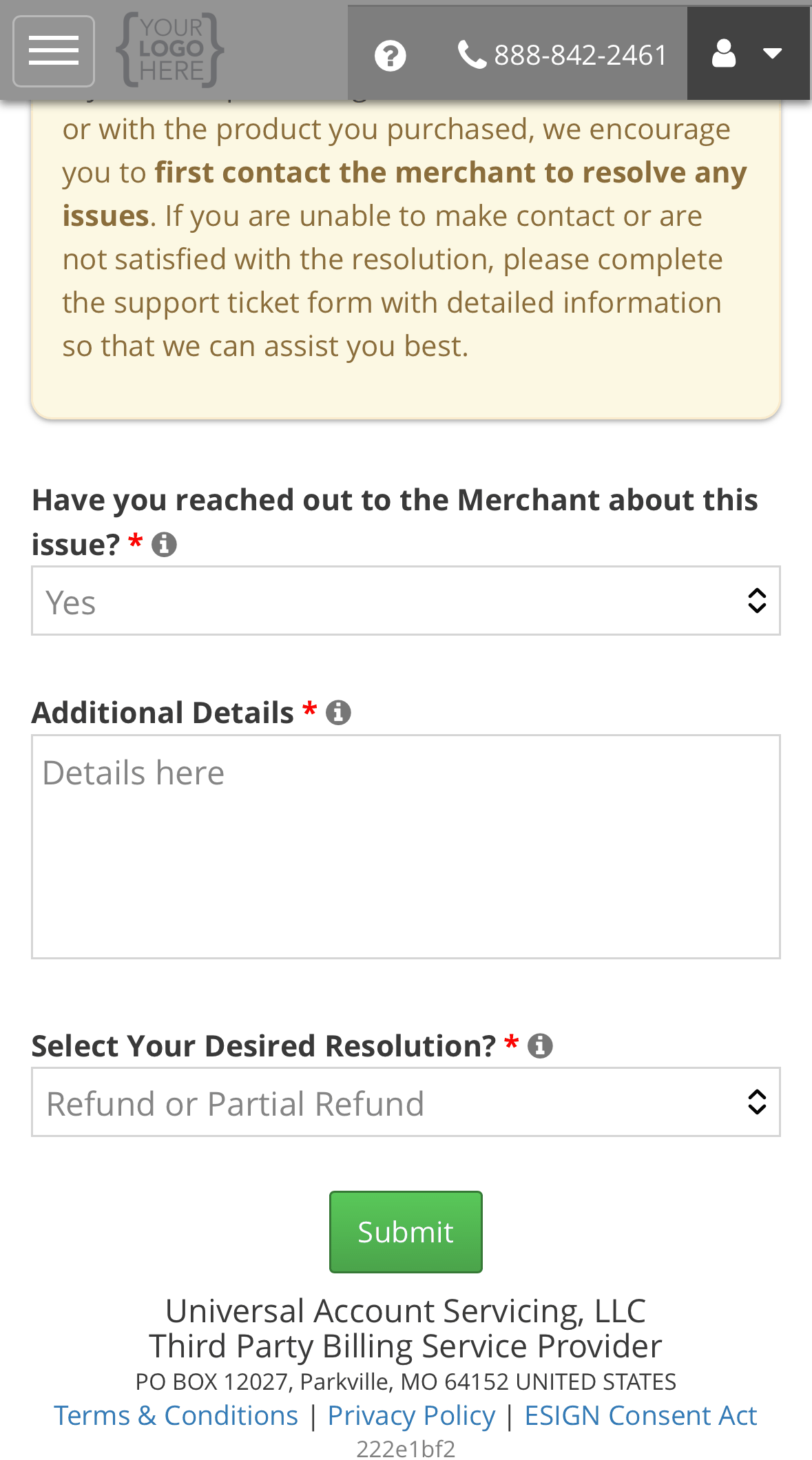
4
Note your case number
The confirmation shows your case number. Keep it. It is how you and we refer to this
request.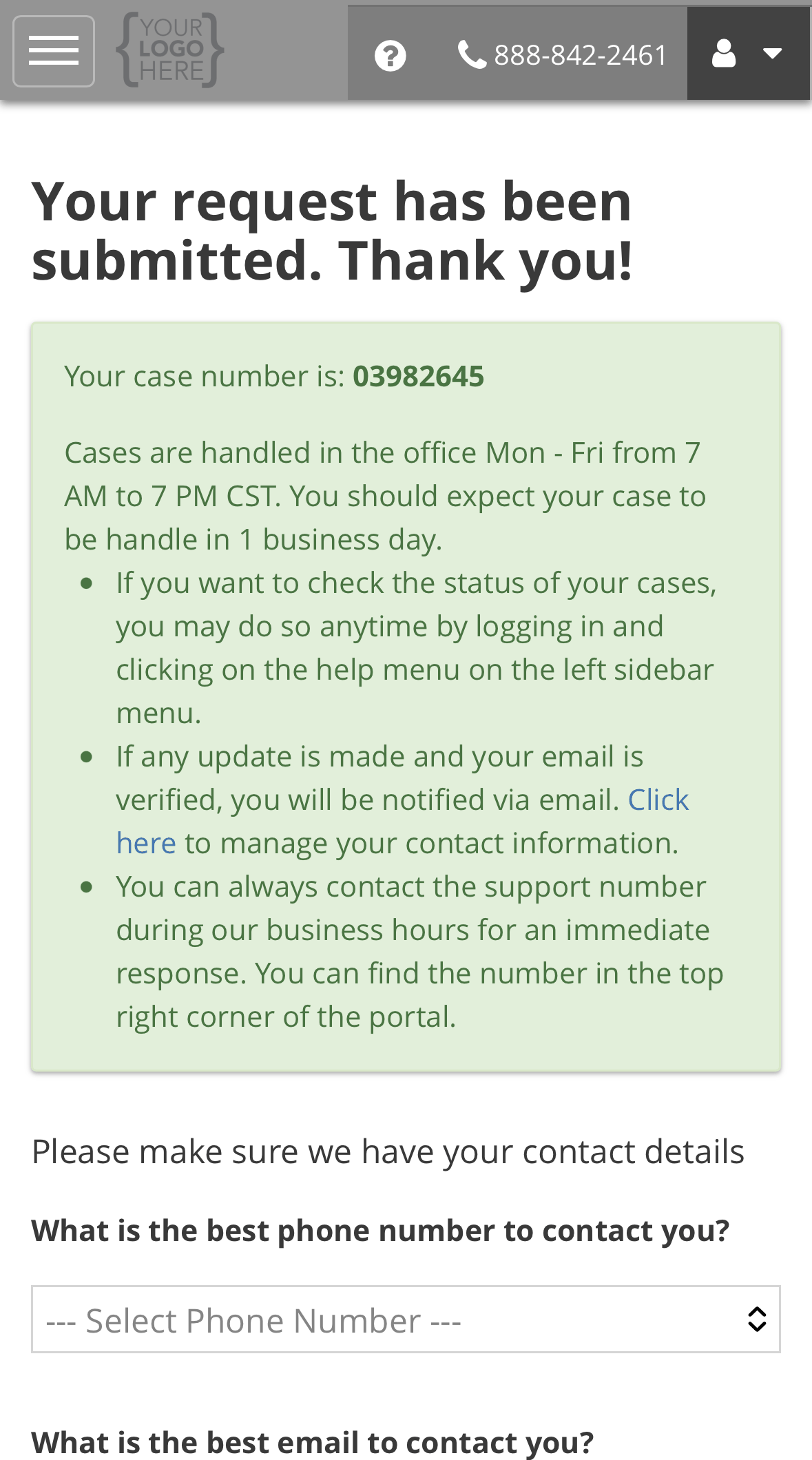
The confirmation mentions the number at the top right of uPortal360. That number can belong to
the business you bought from. To reach us, call (888) 233-2302.
5
Confirm how to reach you
Choose the best phone number, email address and time of day to contact you, then select
Update & Continue. This takes you to your ticket, where you can add attachments and remarks.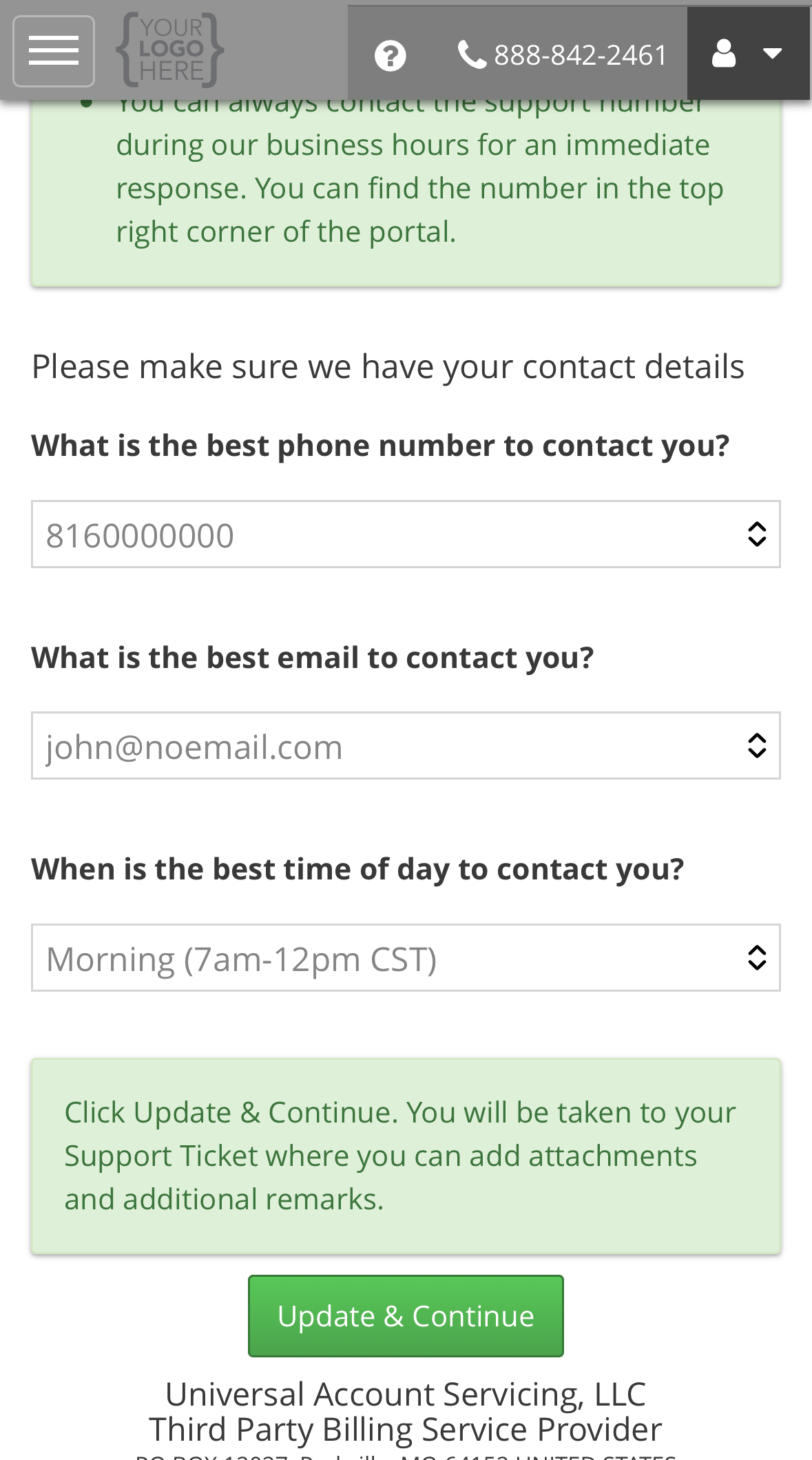
What happens next
Your request is logged and we gather what is needed. Our office works cases Monday to Friday, 7:00 AM – 7:00 PM Central, and aims to pick yours up within one business day. If your email address is verified, you get an email each time the ticket is updated.How long it should take
If your request is about something the business you bought from has to decide, such as a return, a
cancellation or a product fault, most of that time is theirs, not ours. The ticket shows you where
it is waiting.
Reading your ticket
While a ticket is open, the Home screen tells you so. Select here to go straight to it.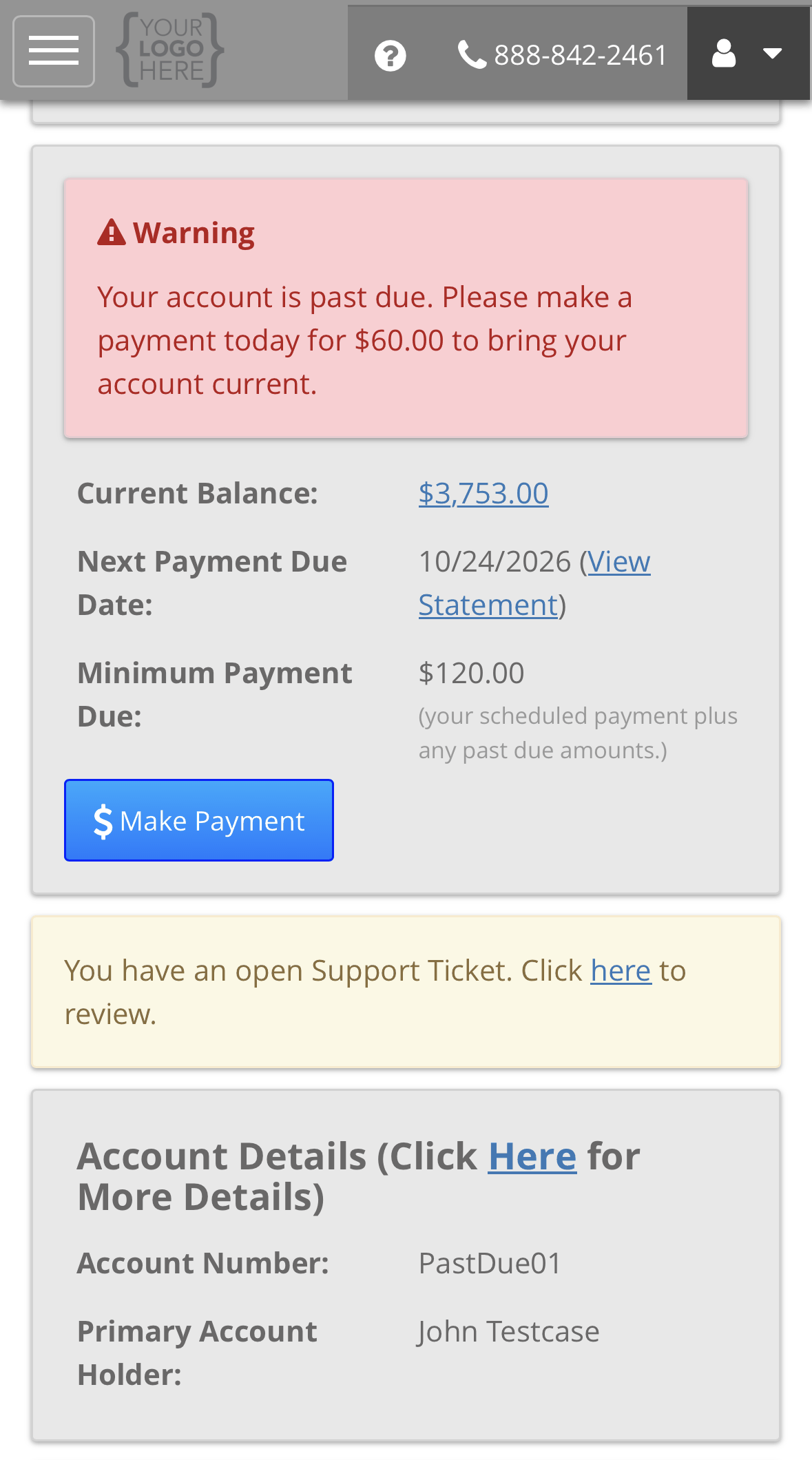
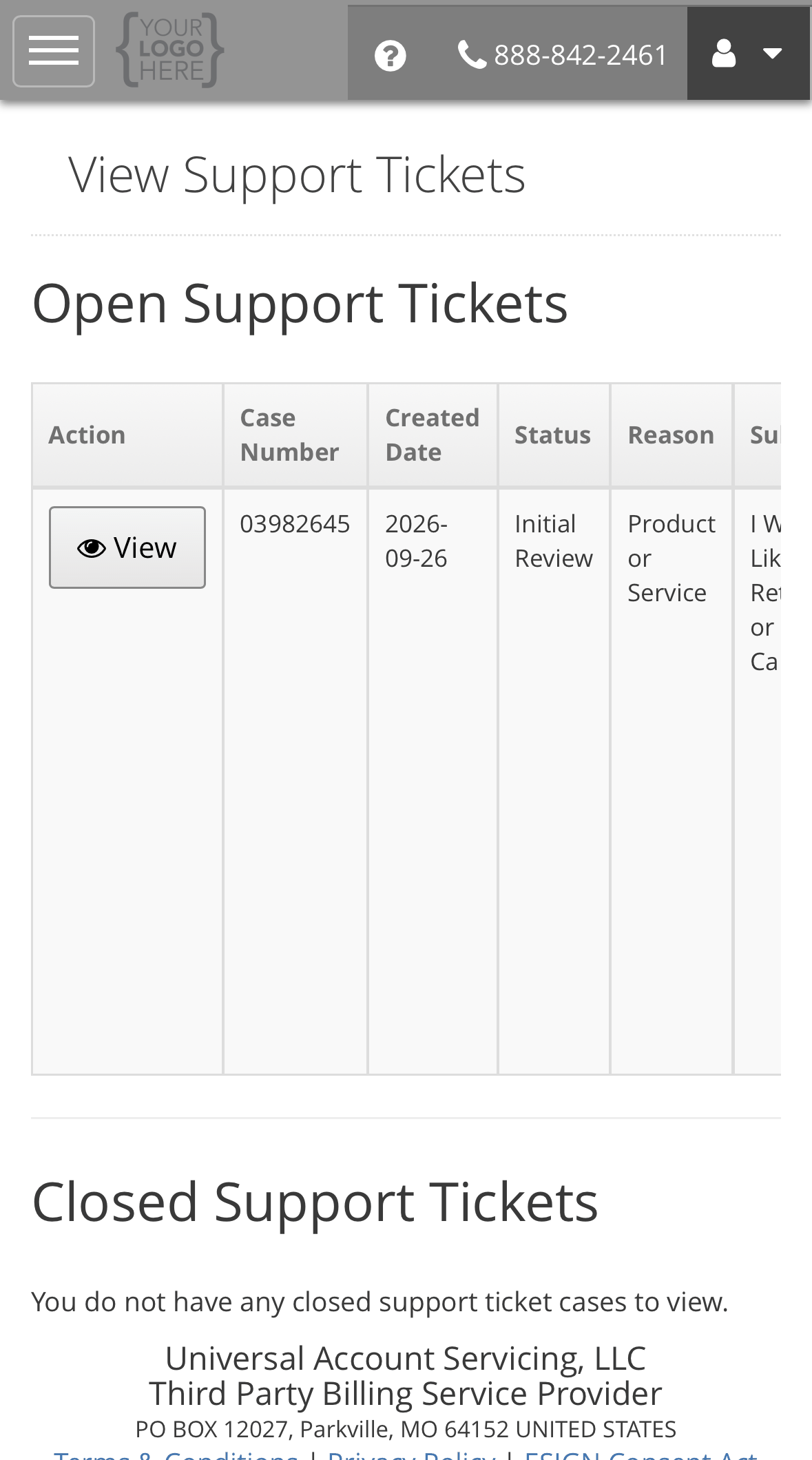
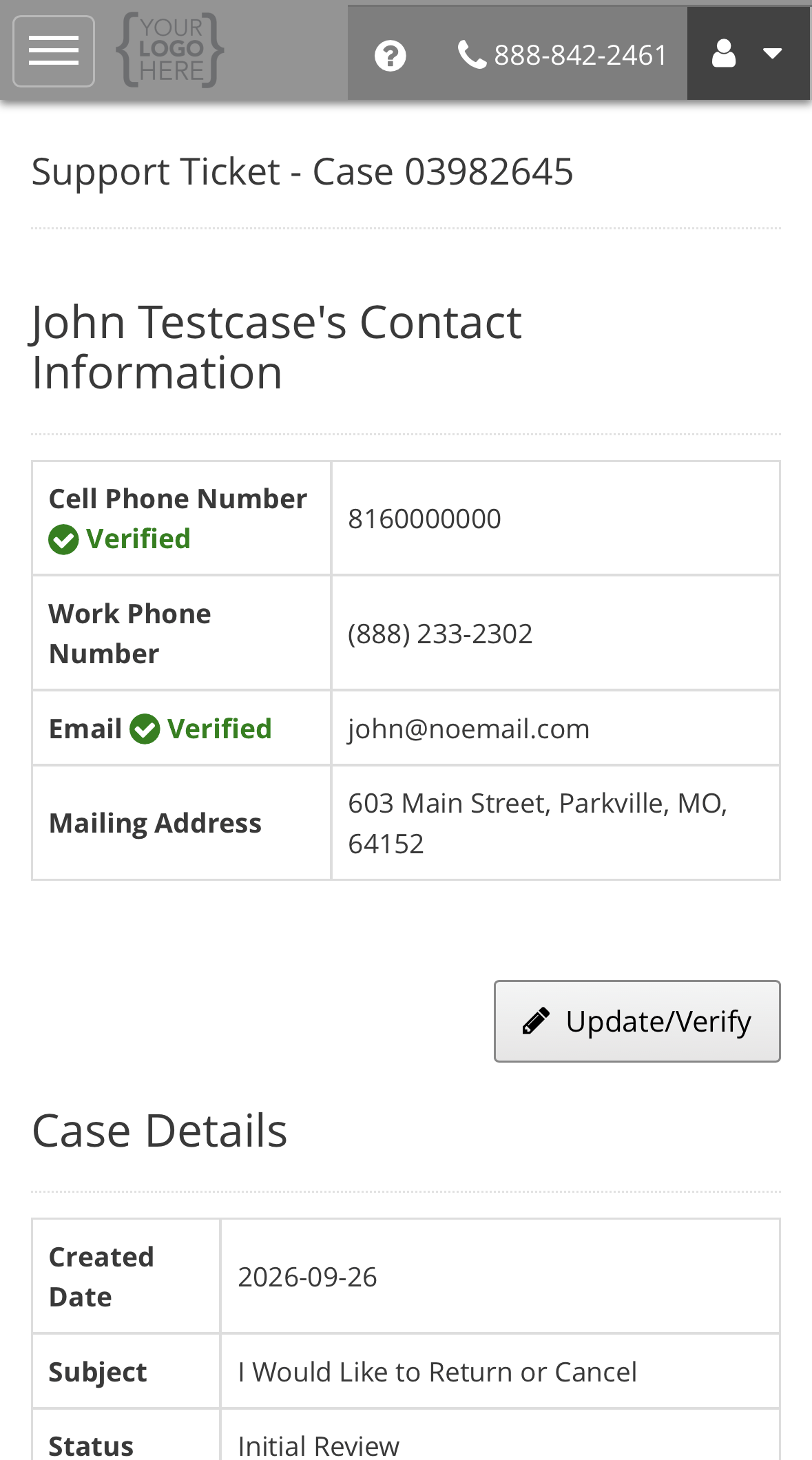
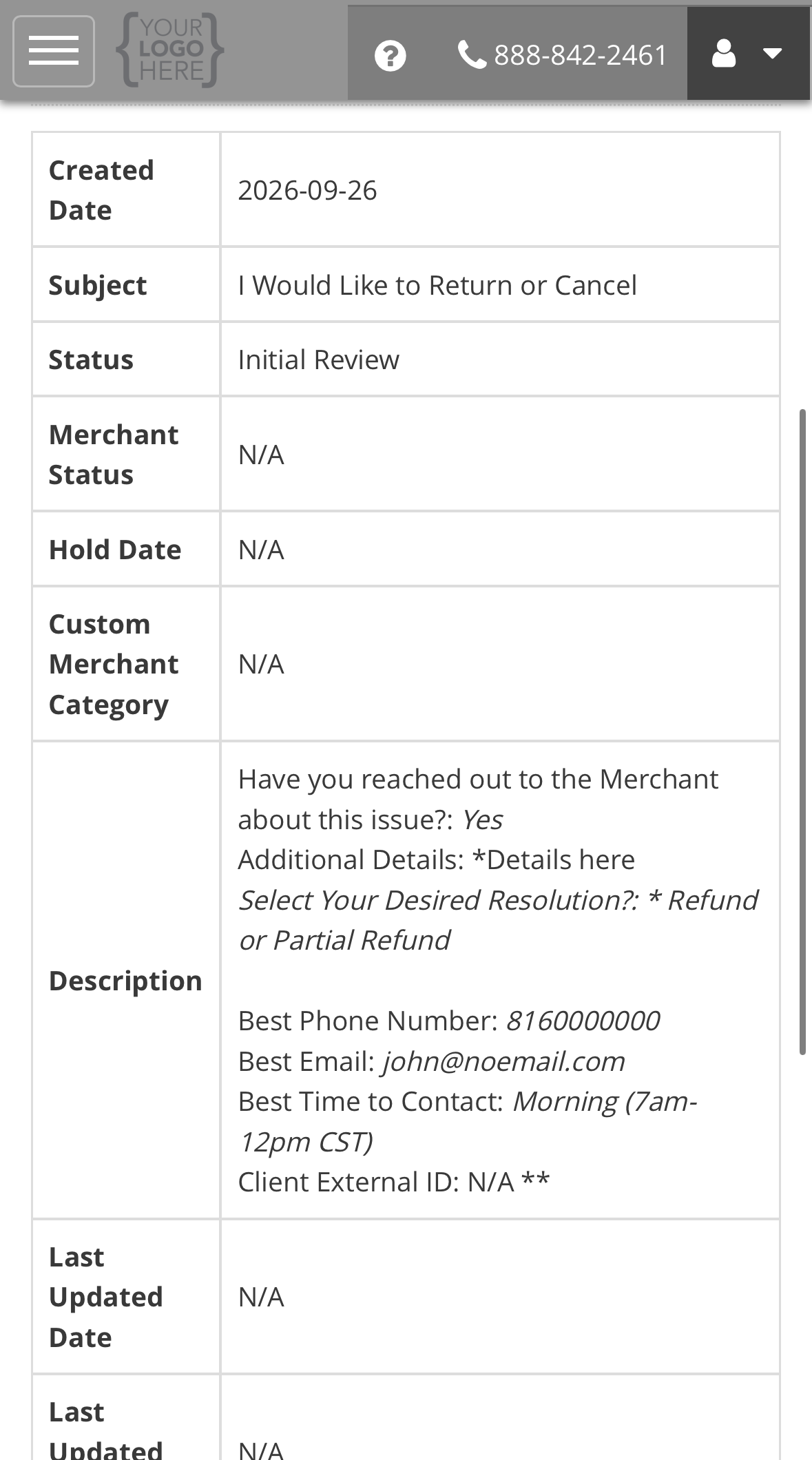
Status and Merchant Status are separate. Status is our progress on the ticket. Merchant Status
is the seller’s progress on their part. They can read differently at the same time.
Status
Merchant Status
Adding information to your ticket
While a ticket is open you can add a remark or upload a file, such as a receipt, a photo of a fault, or a police report. The seller sees both.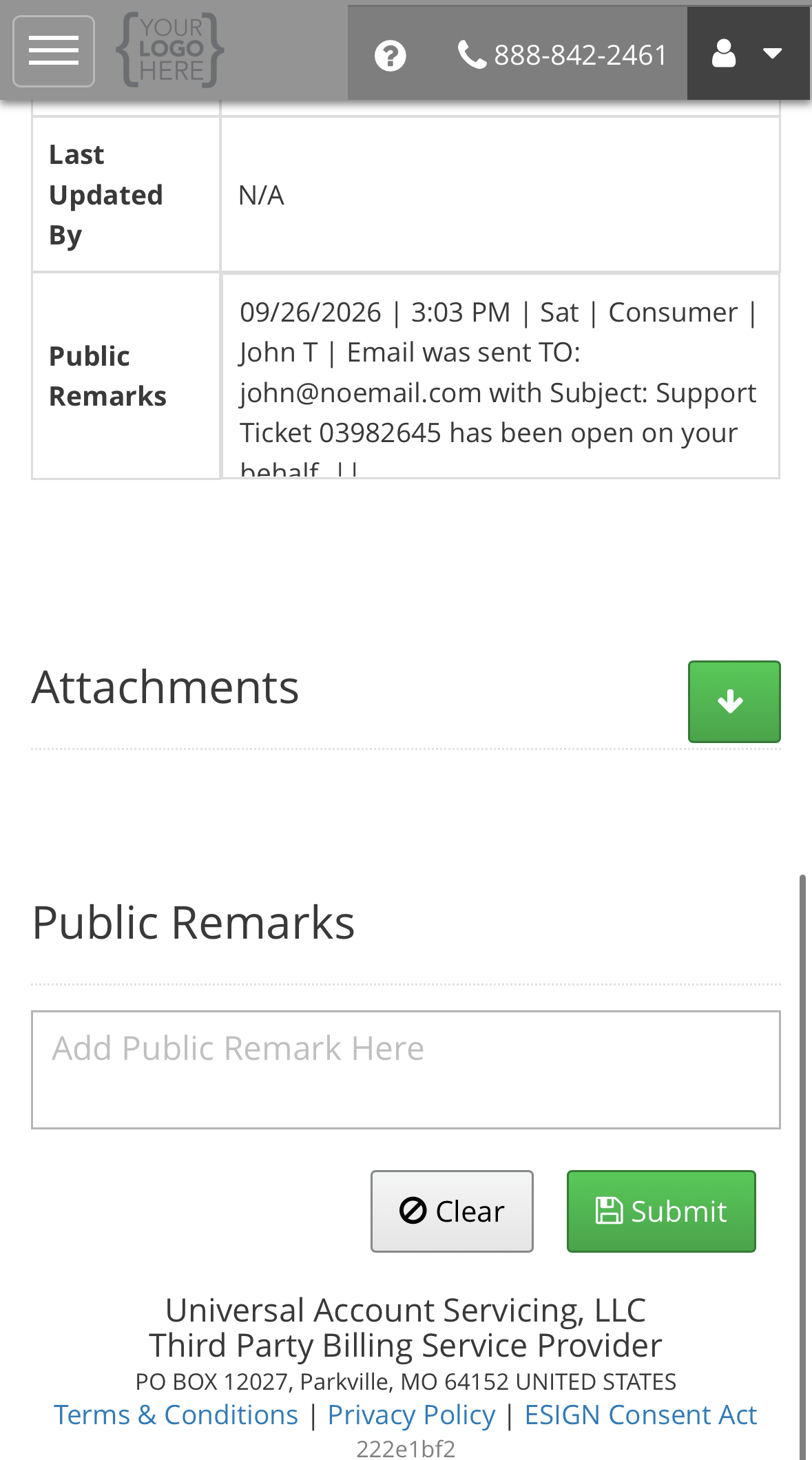
1
Add a remark
Type in Add Public Remark Here and select Submit. It is added to the Public Remarks
log with the date and time.
2
Attach a file
Select the green button beside Attachments, then Choose File. On a phone you can pick
from your photos, take a photo, or choose a file. Select Upload. Each file must be under
10 MB.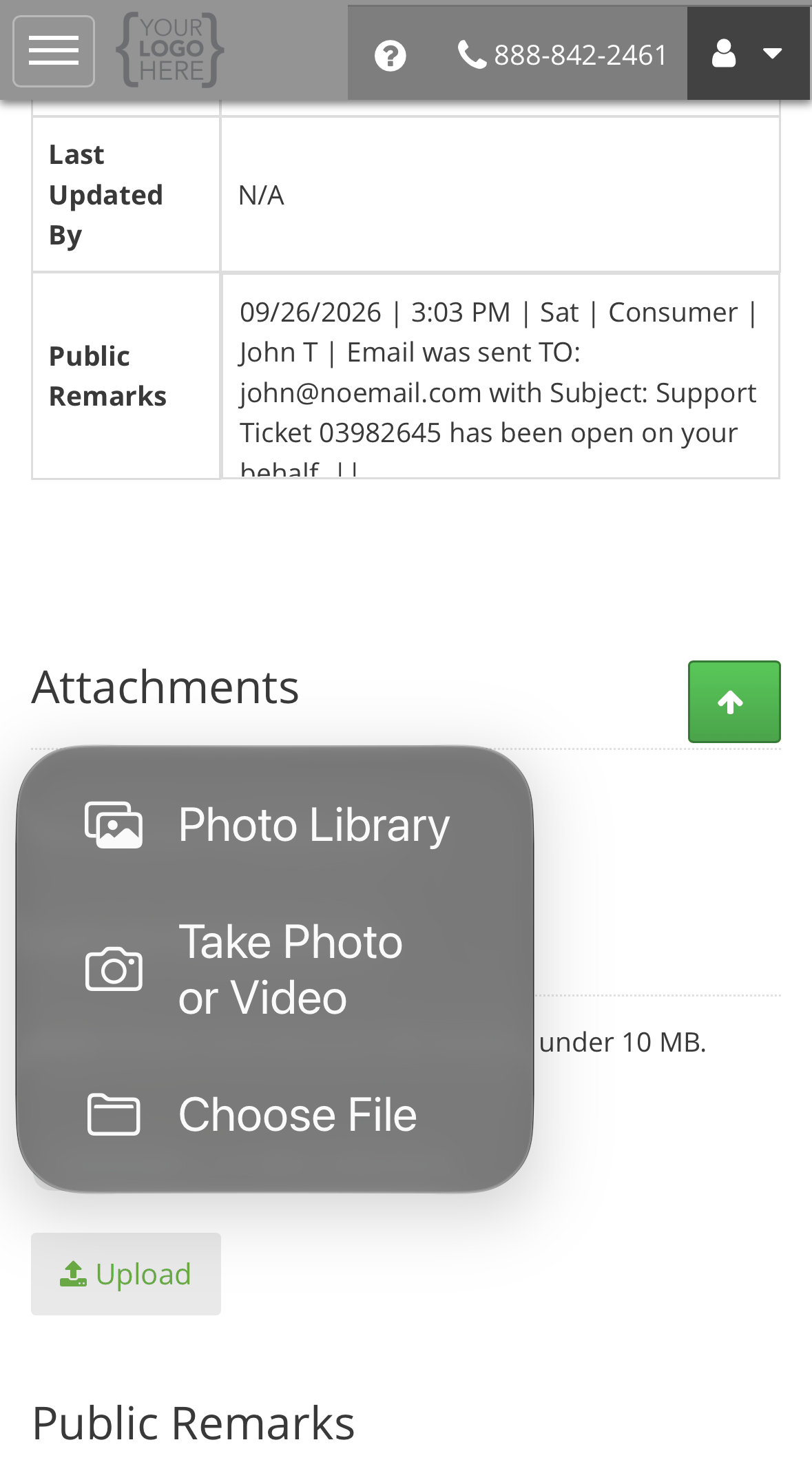
3
Check it arrived
The file is listed under Attachments with its date and size, and the upload is recorded in
Public Remarks.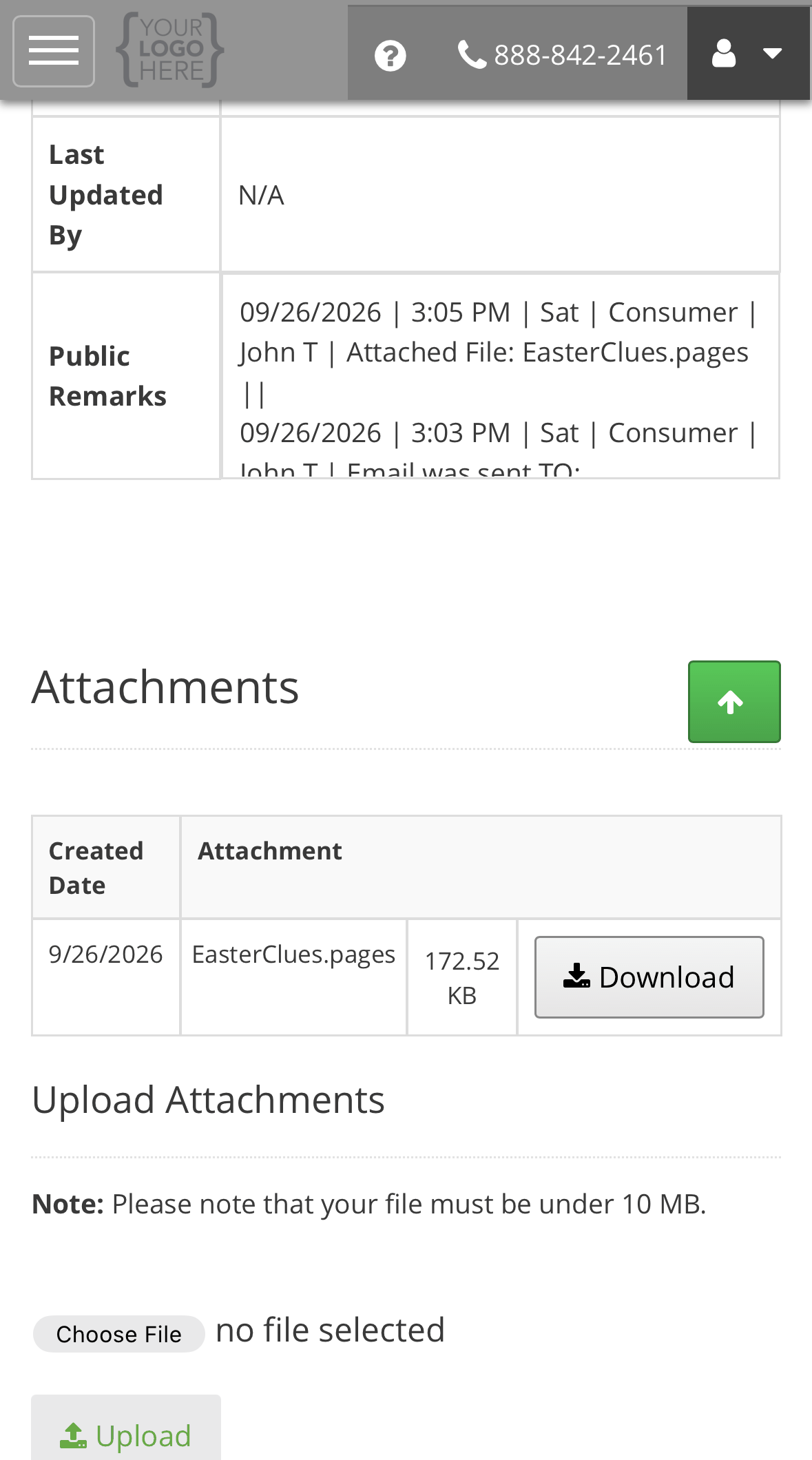
You cannot attach a file to a closed ticket. If you have something new after it closes, open a
new request. If you disagree with the outcome, dispute it (see below).
If it is taking too long, or the answer is wrong
You can escalate the request from the portal, or in writing. You have to wait until the day after you opened it. You cannot escalate the same day. If you disagree with the resolution you are given, you can dispute it, in the portal or in writing. Someone other than the person who answered it looks at the dispute, and the aim is a final response within 7 business days. Some are extended. You should be told if yours is. Both of these are normal, and using them does not put you at the back of a queue.If it is urgent
Call instead. A scheduled payment that needs stopping, or a sign-in problem the day a payment is due, should not wait for a queue.Call (888) 233-2302
Monday to Friday, 7:00 AM – 7:00 PM Central.