

Set it up
1
Open AutoPay
In uPortal360, select Autopay in the menu. Sign in first if you are not already in. If you are not enrolled you will
see Setup Autopay.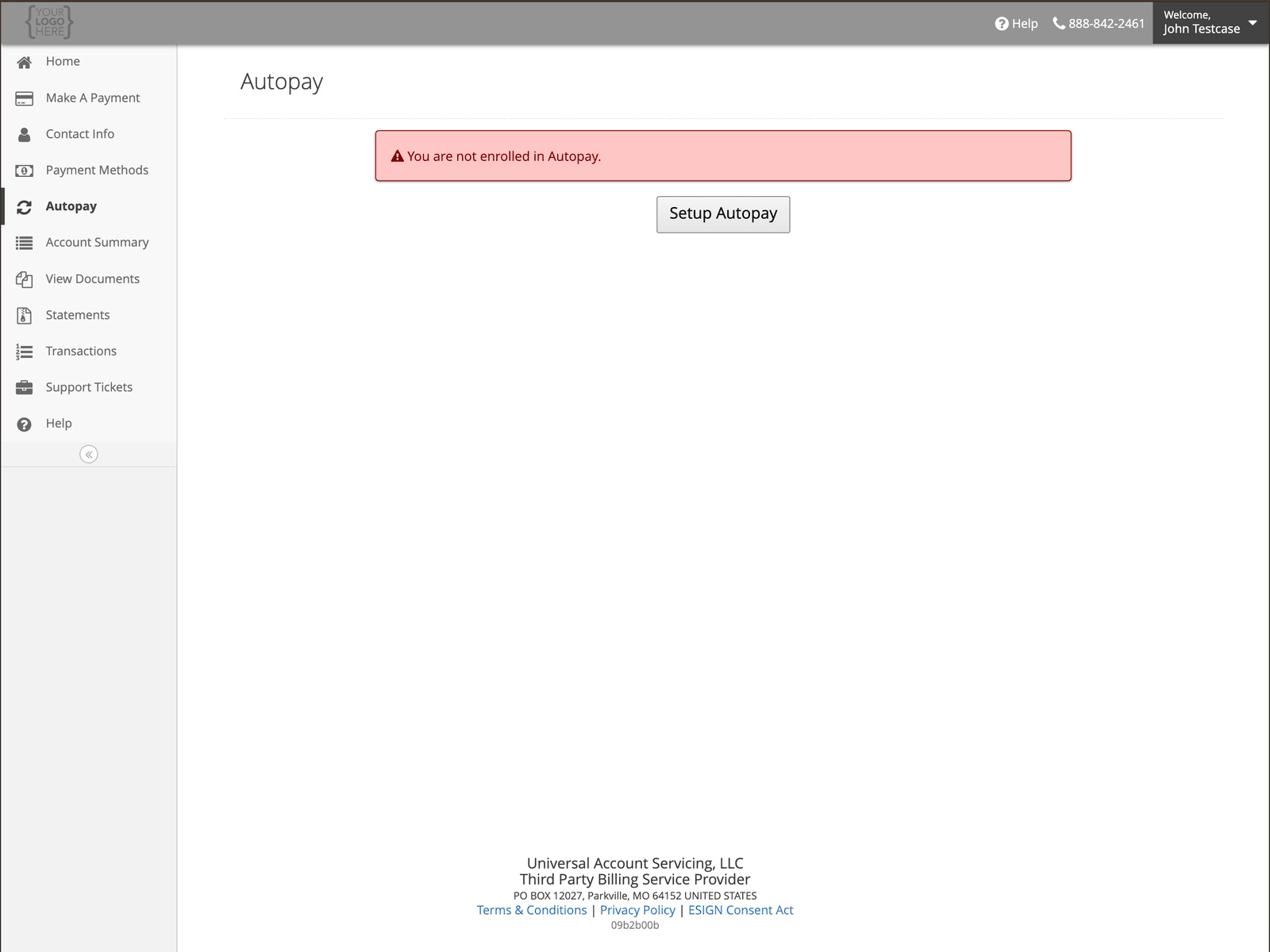
2
Choose your payment method
Pick a saved card or bank account, or select Add Payment Method.
3
Choose your next run date
This is when your first automatic payment will be taken. After that it follows your due date
each month.
4
Choose your amount
Minimum Payment takes whatever your minimum is that month, so it adjusts if your minimum
changes.Override Amount takes a fixed amount you set instead. It must be more than your minimum
monthly payment.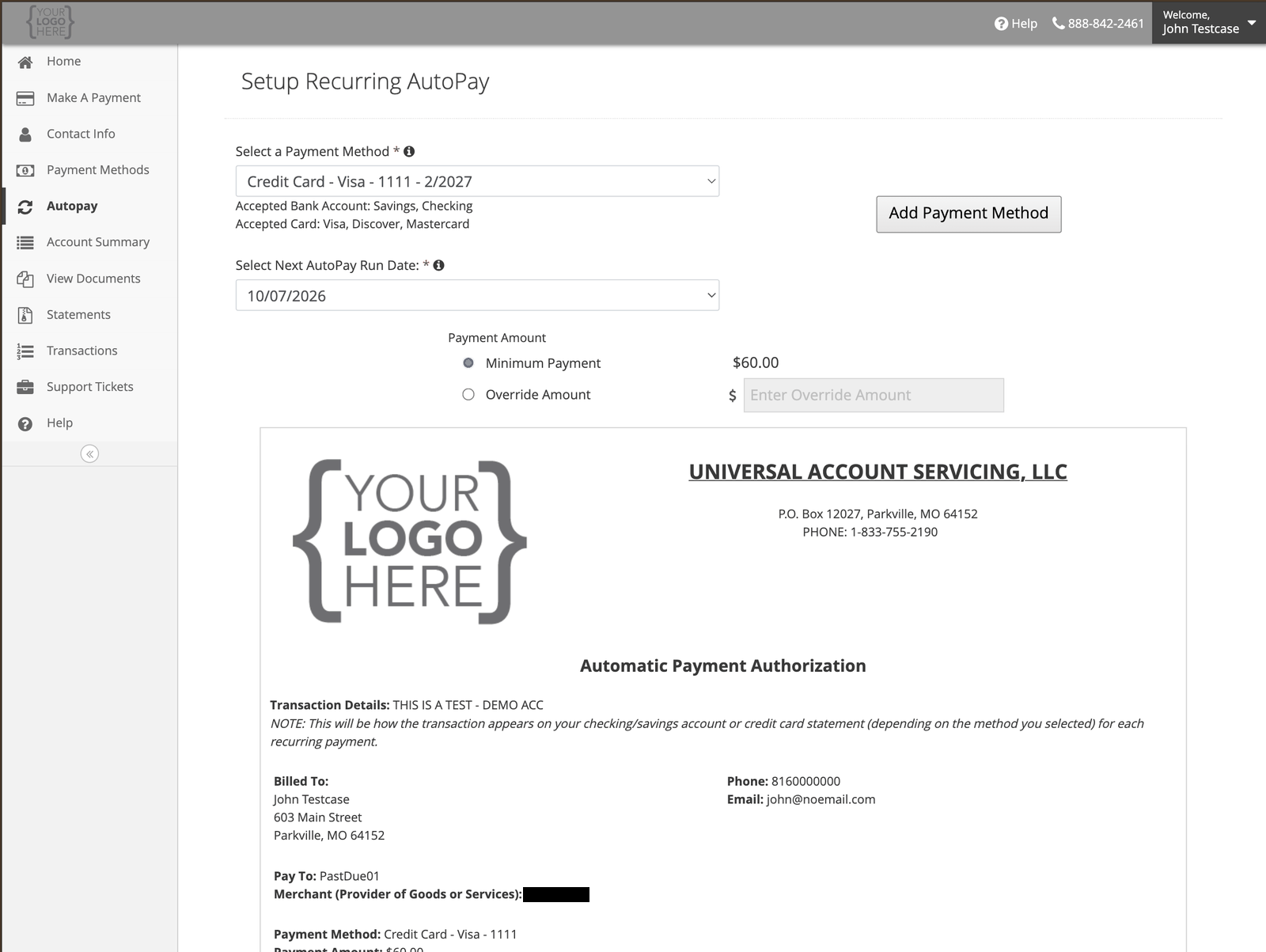
5
Read the authorization and sign
The authorization sets out what you are agreeing to. Sign in the box — with your finger on a
phone or tablet, or by holding down the mouse button and drawing.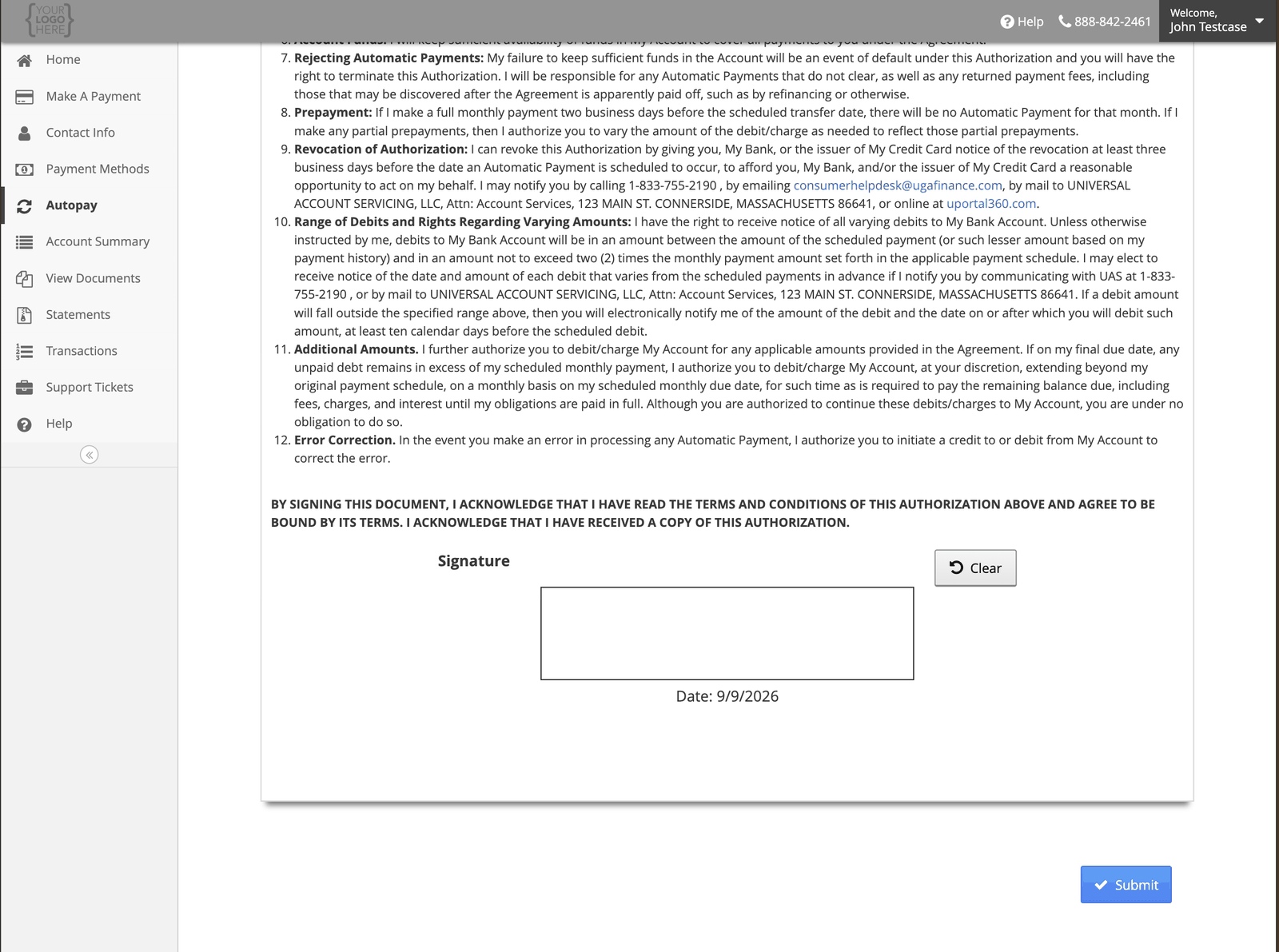
6
Submit
You will see a confirmation once it is set up, and your Payment Methods page will show an
AUTO PAY badge against the method you chose.
What you are agreeing to
Worth knowing before you sign, because it is not obvious from the screen:Before your first payment you should know the amount, the date, and how often it will run. All
three are on the setup screen and in the copy of the authorization. If anything on the copy does
not match what you chose, tell us before the first payment date.