> ## Documentation Index
> Fetch the complete documentation index at: https://faq.universalaccountservicing.com/llms.txt
> Use this file to discover all available pages before exploring further.
# Alerts and paperless statements
> Turn on account alerts, switch to electronic statements, and choose what we notify you about.
You can have uPortal360 email you when something happens on your account, and receive your
statements electronically instead of on paper.
**If you have a promotional offer, turn on the Promotional Term Expiring alert.** It is the single
most useful setting on your account — an email before your deadline, while there is still time to
pay the balance and keep the interest waived. See [Promotional offers](/promotional-offers).
## The eight alerts
| Alert | Tells you when |
| -------------------------------- | -------------------------------------------------------------------------------------------------------------- |
| **Promotional Term Expiring** | A promotional period is about to end — your last chance to pay in full and avoid the interest |
| **Late Fee Grace Period Ending** | Your grace period is running out, before a late fee is charged |
| **Payment Past Due** | A payment has been missed |
| **Payment Declined** | A payment did not go through — see [When a payment won't go through](/payments/when-a-payment-wont-go-through) |
| **NSF Payment** | A payment was returned unpaid by your bank |
| **Payment Posted** | A payment has been applied to your account |
| **AutoPay** | An automatic payment is scheduled or has run |
| **Fee Charged** | A fee has been added to your account |
The first two are the ones that can save you money. Both warn you *before* something costs you,
while you can still act.
**When the two warning alerts arrive:**
| | |
| -------------------------------- | ------------------------------------------------------------------------------------------------------------ |
| **Promotional Term Expiring** | 30 days before your promotional period ends. If you also have texts on, you get one at 45, 30, 15 and 5 days |
| **Late Fee Grace Period Ending** | 2 days before your grace period runs out |
The rest follow the event — a payment posting, a fee being charged, a payment being declined — and
arrive the next day. The AutoPay reminder comes 3 days before the payment is taken.
## Turning them on
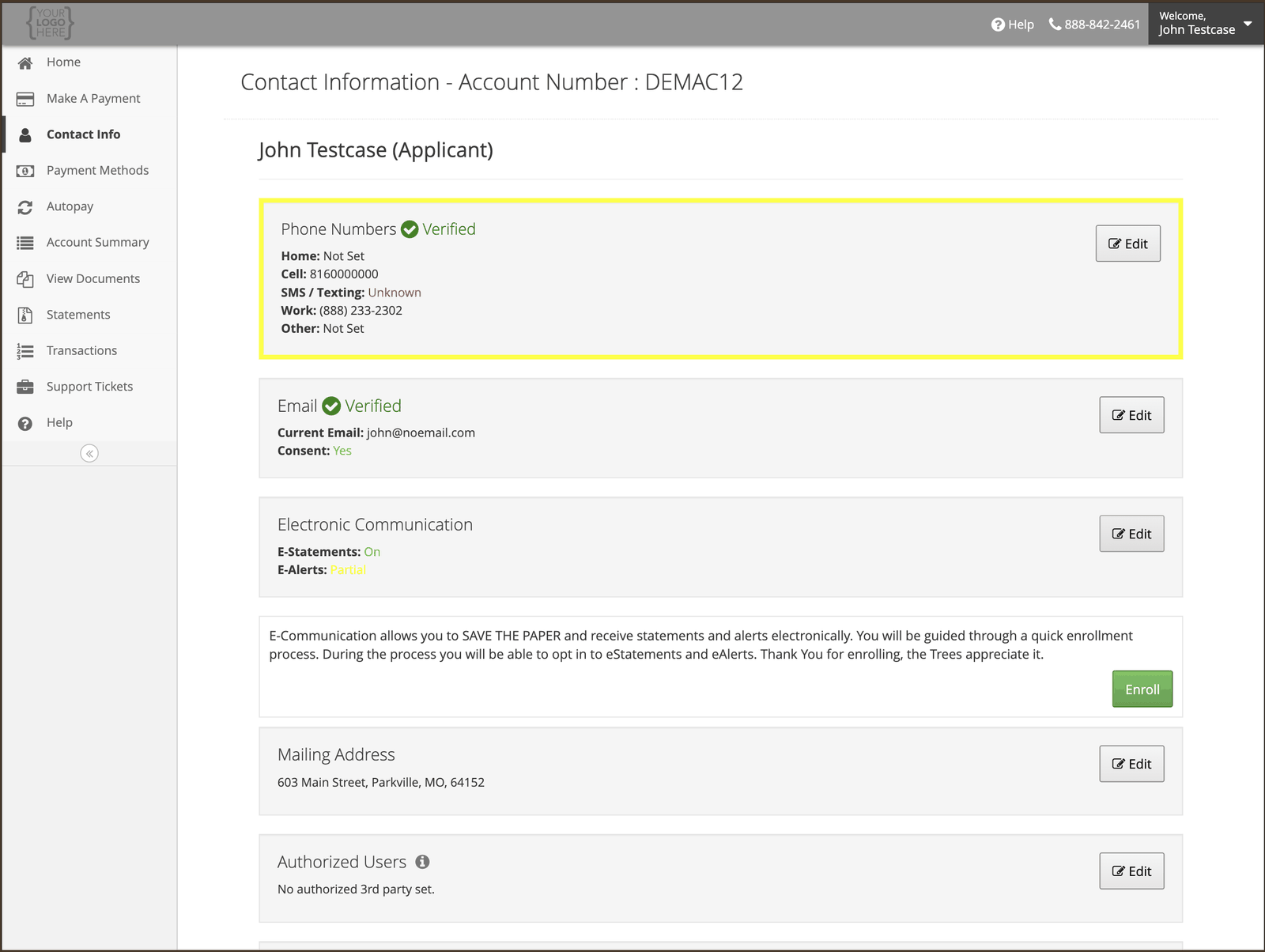
Alerts and electronic statements are set up together, in a five-step process. Sign in, open
**Contact Info**, and select **Edit** beside **Electronic Communication**, then **Enroll**.
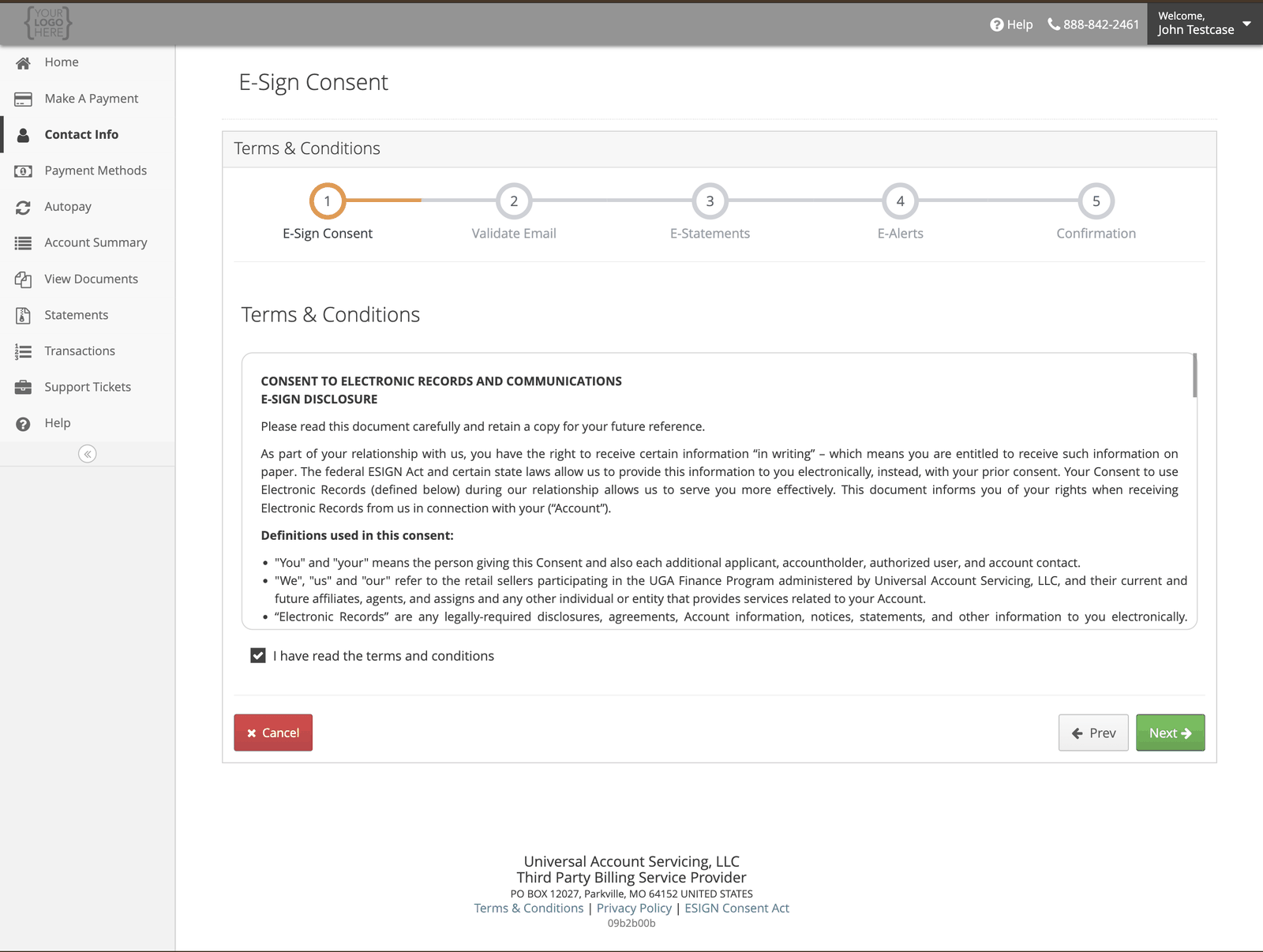
 Federal law entitles you to receive certain information on paper. Consenting to electronic
records is how you agree to receive it by email instead.
Federal law entitles you to receive certain information on paper. Consenting to electronic
records is how you agree to receive it by email instead.
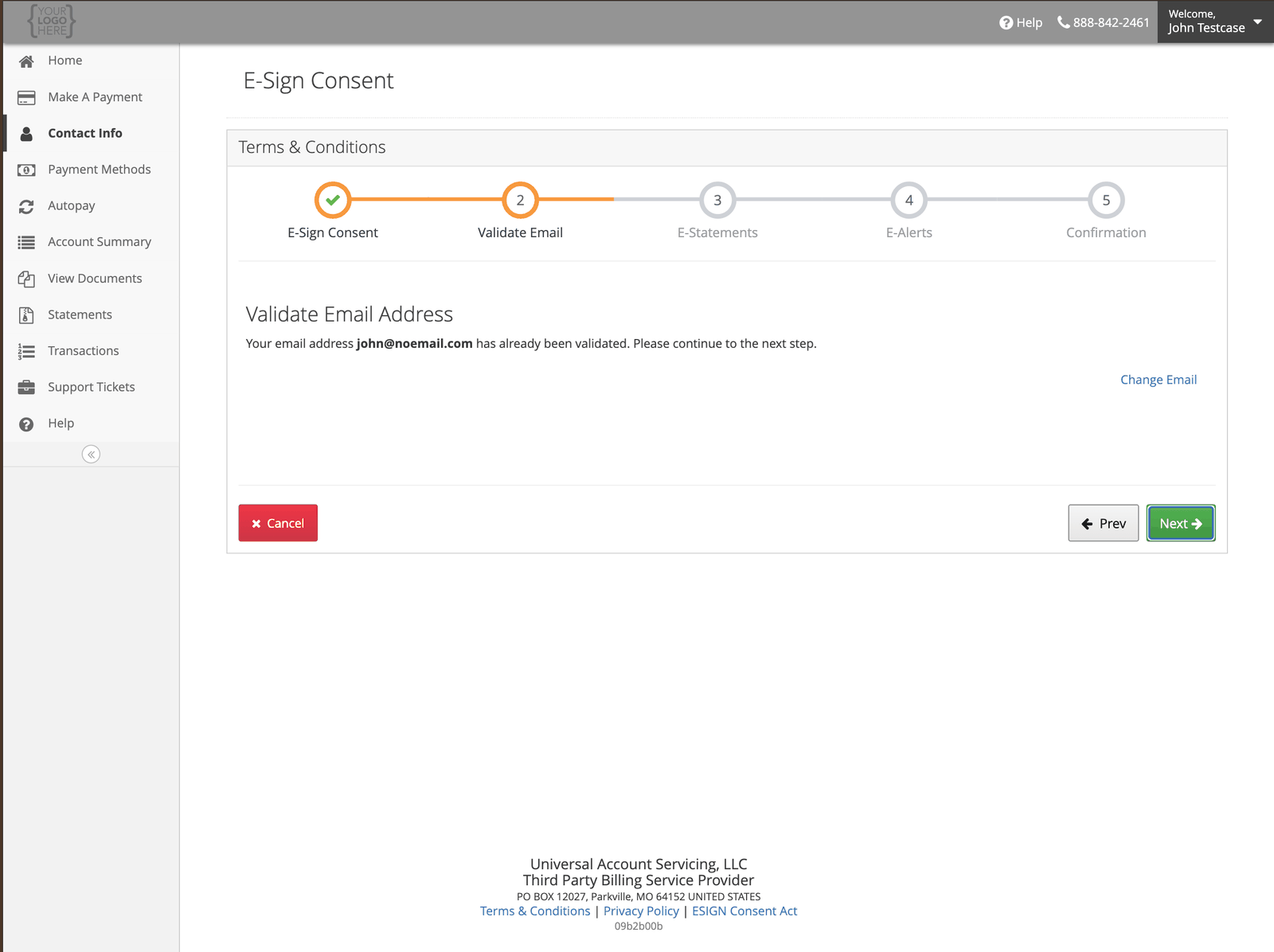
 Everything electronic goes to this address, so check it is one you read. You can change it here
if it is out of date.
Everything electronic goes to this address, so check it is one you read. You can change it here
if it is out of date.
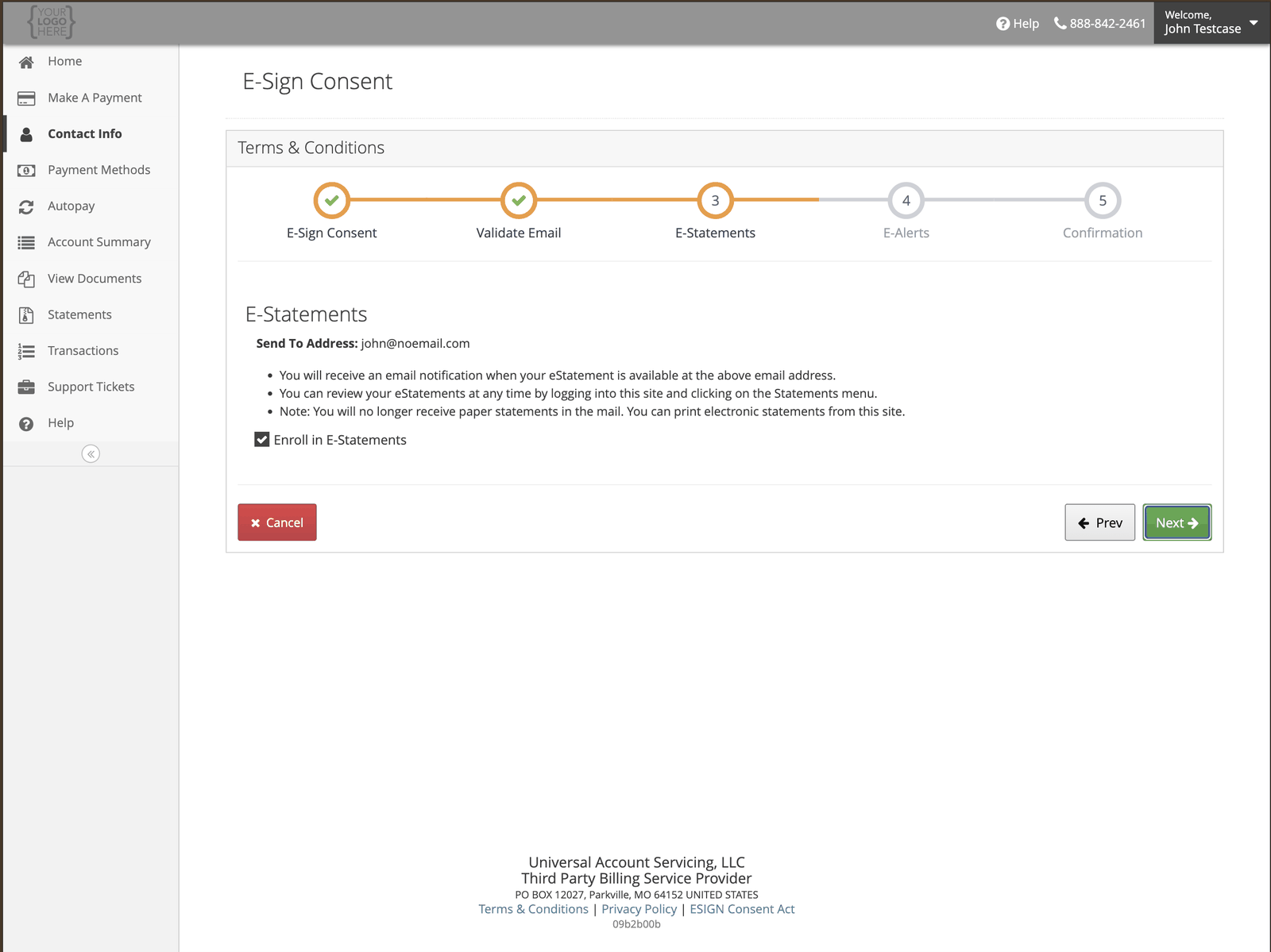
 You will get an email when each statement is ready, and can read or print it in the portal at
any time.
You will get an email when each statement is ready, and can read or print it in the portal at
any time.
 All eight are switched on by default. Turn off any you do not want.
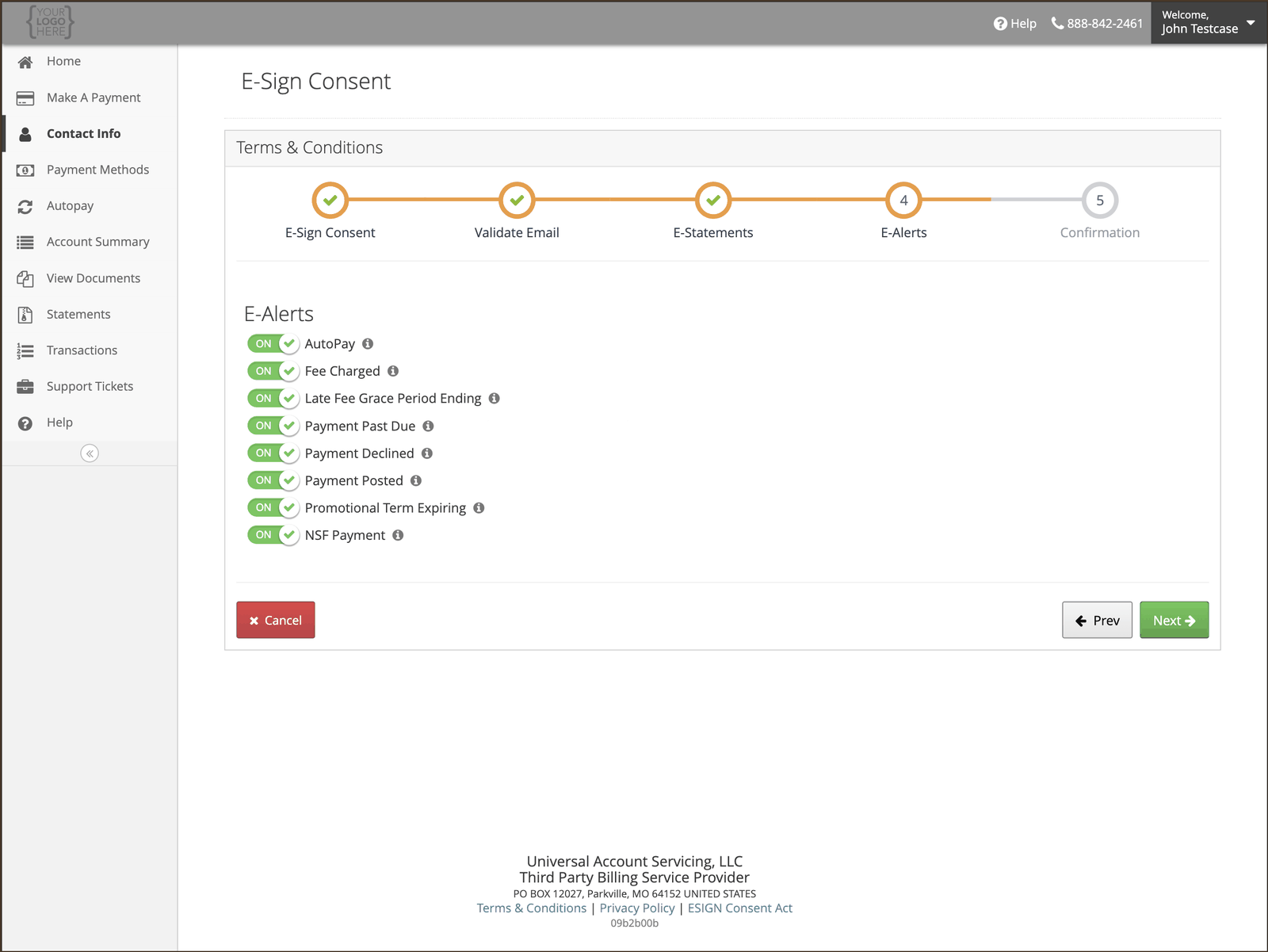 Your settings apply from your next statement or alert.
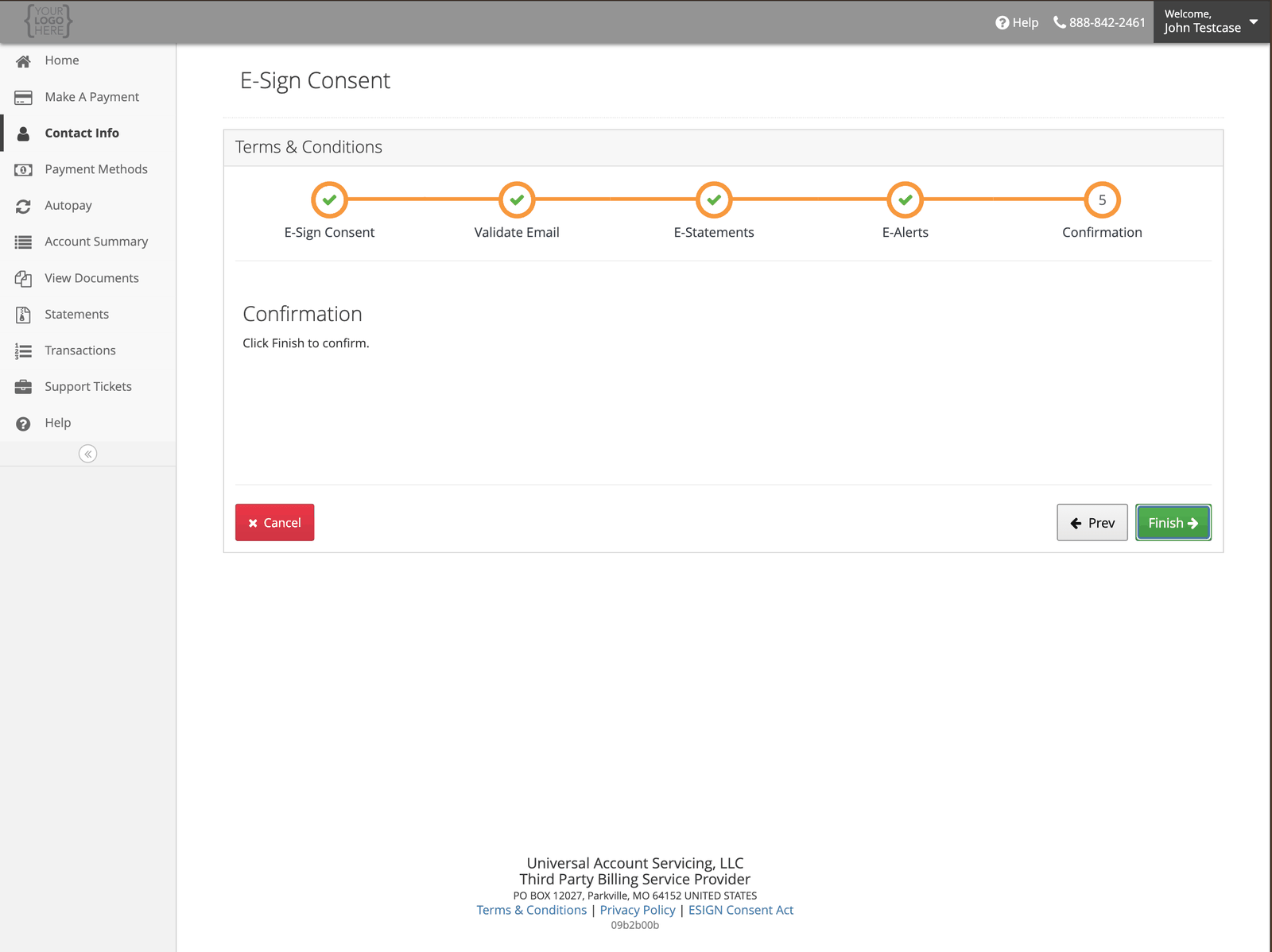 **Enrolling in electronic statements stops your paper statements.** If you want alerts by email
but would still like statements in the post, say so when you enroll, or
[contact us](/getting-help/contacting-uas).
## What you need to receive records electronically
The consent asks you to confirm you can actually open and keep what we send. You need internet
access, a current browser, Adobe Acrobat Reader or something else that opens PDFs, enough storage
to save them, a working email address, and a device that supports all of that.
You also agree to **keep your email address up to date** — see
[Updating your contact information](/signing-in/updating-contact-information). If our emails stop
reaching you, that is the usual reason.
**If an email to you bounces, we remove the address.** One undeliverable message and the address
comes off your account — and with no working email on file, everything we are required to send you
goes back to paper, posted to your mailing address.
So if your statements suddenly arrive in the post again, check your email address in **Contact
Info** first. And check your mailing address is current too, because that is now the only way we
can reach you.
**A new email address has to be verified before it is used.** We send a code or a link to confirm
the address belongs to you. Until that happens, electronic delivery does not start.
**Anyone who can open your inbox can read your account emails.** They contain your name, account
information, your balance and your due date. They never contain your full Social Security Number.
If you share an email address or a household computer, that is worth knowing before you switch off
paper.
## Changing your mind later
Your alert settings live under **Contact Info** → **Electronic Communication** and can be changed at
any time. Turning an alert off does not affect your statements, and vice versa.
**To go back to paper**, you can withdraw your consent to electronic records — online in uPortal360,
or by writing to us. A withdrawal takes effect once we have had a reasonable period to process it,
so it will not necessarily catch your next statement.
**You can ask for a paper copy of anything at any time, free of charge**, without withdrawing your
consent or leaving paperless. Ask us for the specific document you want — see
[Contacting UAS](/getting-help/contacting-uas).
Two things to expect even after going paperless: we may still send you something on paper if we
choose to, and if a statement carries legally required material we may post it **as well as**
making it available electronically.
**Enrolling in electronic statements stops your paper statements.** If you want alerts by email
but would still like statements in the post, say so when you enroll, or
[contact us](/getting-help/contacting-uas).
## What you need to receive records electronically
The consent asks you to confirm you can actually open and keep what we send. You need internet
access, a current browser, Adobe Acrobat Reader or something else that opens PDFs, enough storage
to save them, a working email address, and a device that supports all of that.
You also agree to **keep your email address up to date** — see
[Updating your contact information](/signing-in/updating-contact-information). If our emails stop
reaching you, that is the usual reason.
**If an email to you bounces, we remove the address.** One undeliverable message and the address
comes off your account — and with no working email on file, everything we are required to send you
goes back to paper, posted to your mailing address.
So if your statements suddenly arrive in the post again, check your email address in **Contact
Info** first. And check your mailing address is current too, because that is now the only way we
can reach you.
**A new email address has to be verified before it is used.** We send a code or a link to confirm
the address belongs to you. Until that happens, electronic delivery does not start.
**Anyone who can open your inbox can read your account emails.** They contain your name, account
information, your balance and your due date. They never contain your full Social Security Number.
If you share an email address or a household computer, that is worth knowing before you switch off
paper.
## Changing your mind later
Your alert settings live under **Contact Info** → **Electronic Communication** and can be changed at
any time. Turning an alert off does not affect your statements, and vice versa.
**To go back to paper**, you can withdraw your consent to electronic records — online in uPortal360,
or by writing to us. A withdrawal takes effect once we have had a reasonable period to process it,
so it will not necessarily catch your next statement.
**You can ask for a paper copy of anything at any time, free of charge**, without withdrawing your
consent or leaving paperless. Ask us for the specific document you want — see
[Contacting UAS](/getting-help/contacting-uas).
Two things to expect even after going paperless: we may still send you something on paper if we
choose to, and if a statement carries legally required material we may post it **as well as**
making it available electronically.