> ## Documentation Index
> Fetch the complete documentation index at: https://faq.universalaccountservicing.com/llms.txt
> Use this file to discover all available pages before exploring further.
# Making a one-time payment
> Pay any amount toward your balance in uPortal360, and what your receipt tells you.
Sign in to uPortal360 and select **Make A Payment** from the menu. Your balance, next due date
and minimum payment are shown at the top.
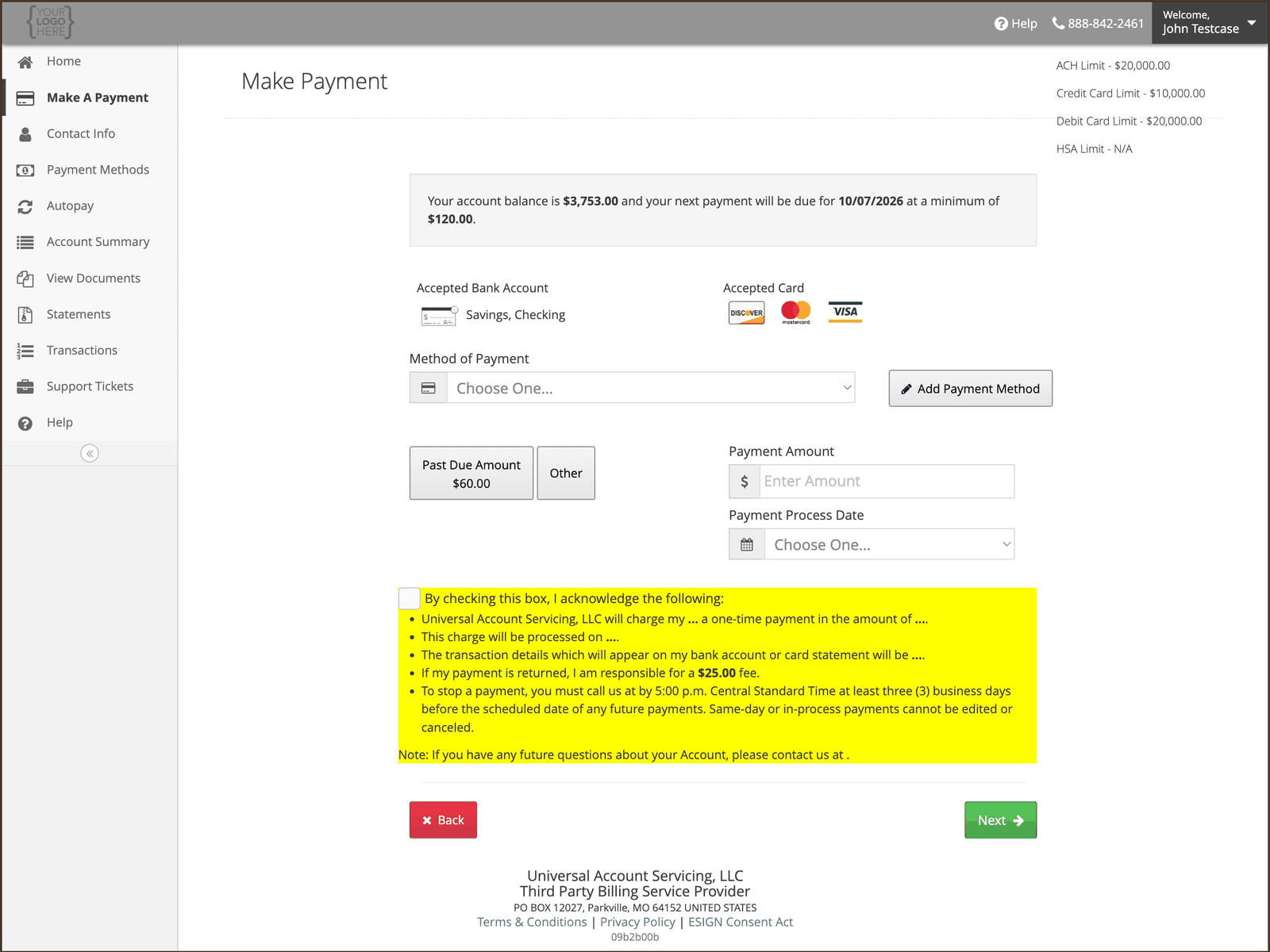 Pick a saved payment method, or select **Add Payment Method** to use a new card or bank account.
See [Managing your saved payment methods](/payments/managing-payment-methods).
Select your past-due amount if one is shown, or **Other** to enter any amount. You can pay more
than your minimum, and there is no penalty for paying early.
Pay today, or pick a future date.
The highlighted block confirms the amount, when it will be charged, how it will appear on your
bank or card statement, and the fee if the payment is returned. Check the box and select
**Next**.
**Paying in the portal is free.** Your receipt shows a Convenience Fee line, and for an online
payment it is \$0.00. A fee applies only when an agent takes your payment over the phone — see
[Ways to pay](/payments/ways-to-pay#by-phone).
## Your receipt
Every one-time payment gets a receipt. It shows:
| On your receipt | What it is |
| ----------------------------------------------------------------------------- | ------------------------------------------------------------ |
| **Amount, and any fee itemized separately** | A fee is never folded into the payment amount |
| **Last four digits** of the card or bank account, and the card network or ACH | Never the full number, and never the expiration date |
| **Transaction ID** | The reference to quote if you ever ask us about this payment |
| **Date** | The day the payment was taken |
| **The descriptor** | How the charge will appear on your bank or card statement |
| **Refund terms** | How a refund would be returned to you |
Keep it. The Transaction ID is what identifies the payment if you ever need to ask us about it,
including if you need us to re-apply it as of the day you paid. Your receipt also stays in your
account in uPortal360 for at least 120 days.
**What the charge looks like on your bank statement.** The descriptor usually carries **the name
of the business you bought from**, alongside UAS and our contact number — for example
`UAS-MERCHANTNAME-8882332302`. It is deliberately built that way so you can recognize the charge.
Exactly how much of it your bank displays varies.
If a charge from us looks unfamiliar, call the number in the descriptor before disputing it with
your bank.
**AutoPay works differently.** A receipt like this is issued for one-time payments. AutoPay runs
under the authorization you already signed, and that authorization is your record of what was
agreed. Every AutoPay payment still appears under
[Transactions](/statements/transaction-history), and the **Payment Posted** alert emails you each
time one goes through.
## Changing or stopping a payment
**A payment made today cannot be canceled.** Same-day and in-process payments cannot be edited or
stopped.
To stop a **future** payment, call us at least **three business days** before the scheduled date,
by 5:00 PM Central.
Do not confuse that with the payment deadline itself. You have until **11:59 PM Central on your due
date** to make a payment and have it count for that day — see
[When your payment posts](/payments/when-payments-post).
## If it is returned
If a payment is returned unpaid you will be charged a returned payment fee, and we may re-attempt
**the same amount** up to two more times — three attempts in total against that one payment, and no
more. **You are charged the fee only once for a given transaction**, however many attempts are made.
Not every return can be retried. If your bank returns the payment because the account is closed, or
because you stopped the payment or withdrew your authorization, we do not try again — see
[When a payment won't go through](/payments/when-a-payment-wont-go-through#if-your-payment-is-returned-after-it-went-through).
**Your own bank may charge you as well.** That fee is set by your bank, we do not receive it, and
we cannot waive it. Our fee is the one on your account, and we waive it if the payment was
returned because of a mistake on our side.
## If it will not go through
See [When a payment won't go through](/payments/when-a-payment-wont-go-through).
Pick a saved payment method, or select **Add Payment Method** to use a new card or bank account.
See [Managing your saved payment methods](/payments/managing-payment-methods).
Select your past-due amount if one is shown, or **Other** to enter any amount. You can pay more
than your minimum, and there is no penalty for paying early.
Pay today, or pick a future date.
The highlighted block confirms the amount, when it will be charged, how it will appear on your
bank or card statement, and the fee if the payment is returned. Check the box and select
**Next**.
**Paying in the portal is free.** Your receipt shows a Convenience Fee line, and for an online
payment it is \$0.00. A fee applies only when an agent takes your payment over the phone — see
[Ways to pay](/payments/ways-to-pay#by-phone).
## Your receipt
Every one-time payment gets a receipt. It shows:
| On your receipt | What it is |
| ----------------------------------------------------------------------------- | ------------------------------------------------------------ |
| **Amount, and any fee itemized separately** | A fee is never folded into the payment amount |
| **Last four digits** of the card or bank account, and the card network or ACH | Never the full number, and never the expiration date |
| **Transaction ID** | The reference to quote if you ever ask us about this payment |
| **Date** | The day the payment was taken |
| **The descriptor** | How the charge will appear on your bank or card statement |
| **Refund terms** | How a refund would be returned to you |
Keep it. The Transaction ID is what identifies the payment if you ever need to ask us about it,
including if you need us to re-apply it as of the day you paid. Your receipt also stays in your
account in uPortal360 for at least 120 days.
**What the charge looks like on your bank statement.** The descriptor usually carries **the name
of the business you bought from**, alongside UAS and our contact number — for example
`UAS-MERCHANTNAME-8882332302`. It is deliberately built that way so you can recognize the charge.
Exactly how much of it your bank displays varies.
If a charge from us looks unfamiliar, call the number in the descriptor before disputing it with
your bank.
**AutoPay works differently.** A receipt like this is issued for one-time payments. AutoPay runs
under the authorization you already signed, and that authorization is your record of what was
agreed. Every AutoPay payment still appears under
[Transactions](/statements/transaction-history), and the **Payment Posted** alert emails you each
time one goes through.
## Changing or stopping a payment
**A payment made today cannot be canceled.** Same-day and in-process payments cannot be edited or
stopped.
To stop a **future** payment, call us at least **three business days** before the scheduled date,
by 5:00 PM Central.
Do not confuse that with the payment deadline itself. You have until **11:59 PM Central on your due
date** to make a payment and have it count for that day — see
[When your payment posts](/payments/when-payments-post).
## If it is returned
If a payment is returned unpaid you will be charged a returned payment fee, and we may re-attempt
**the same amount** up to two more times — three attempts in total against that one payment, and no
more. **You are charged the fee only once for a given transaction**, however many attempts are made.
Not every return can be retried. If your bank returns the payment because the account is closed, or
because you stopped the payment or withdrew your authorization, we do not try again — see
[When a payment won't go through](/payments/when-a-payment-wont-go-through#if-your-payment-is-returned-after-it-went-through).
**Your own bank may charge you as well.** That fee is set by your bank, we do not receive it, and
we cannot waive it. Our fee is the one on your account, and we waive it if the payment was
returned because of a mistake on our side.
## If it will not go through
See [When a payment won't go through](/payments/when-a-payment-wont-go-through).