> ## Documentation Index
> Fetch the complete documentation index at: https://faq.universalaccountservicing.com/llms.txt
> Use this file to discover all available pages before exploring further.
# Managing your saved payment methods
> Add, update, replace or remove a card or bank account in uPortal360.
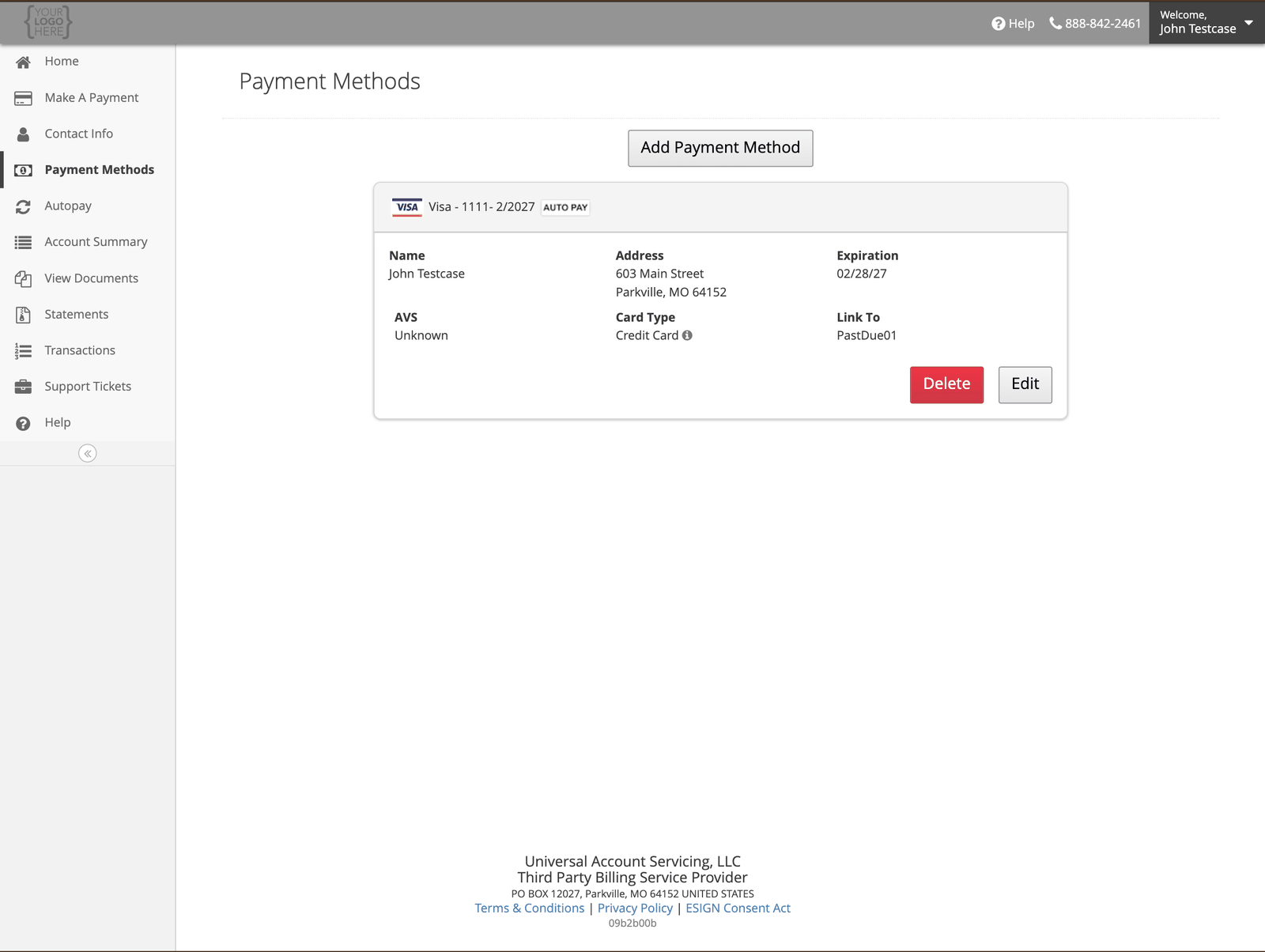
Your saved cards and bank accounts live under **Payment Methods**.
 ## Adding one
Select **Add Payment Method**, then choose **Bank Account** or **Card**.
For a bank account you will need your **9-digit routing number**, your **account number**, and
whether it is checking or savings. The screen shows a check diagram if you are not sure which number
is which.
## Adding one
Select **Add Payment Method**, then choose **Bank Account** or **Card**.
For a bank account you will need your **9-digit routing number**, your **account number**, and
whether it is checking or savings. The screen shows a check diagram if you are not sure which number
is which.
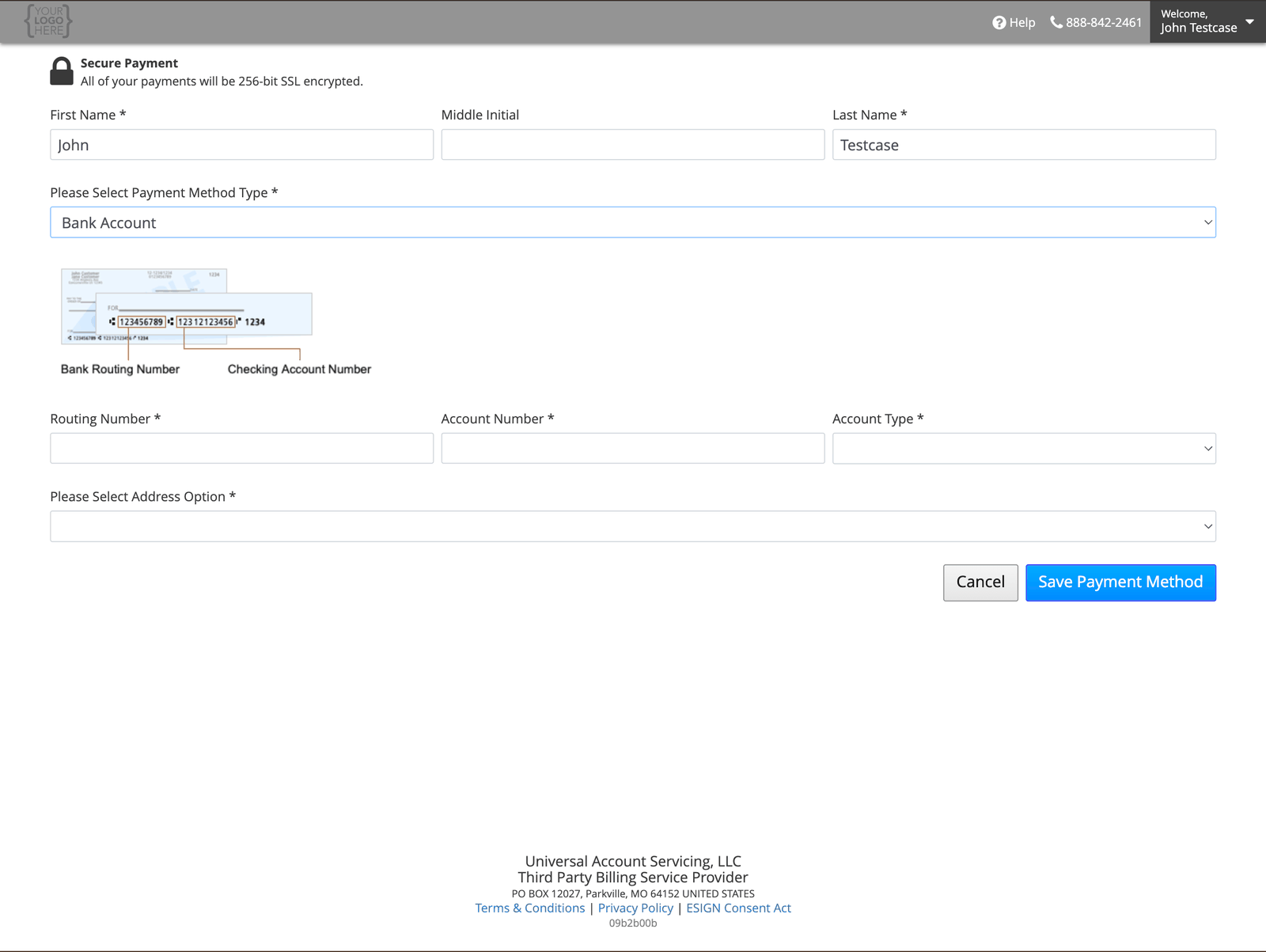 For a card you will need the number, security code, expiration date and billing address.
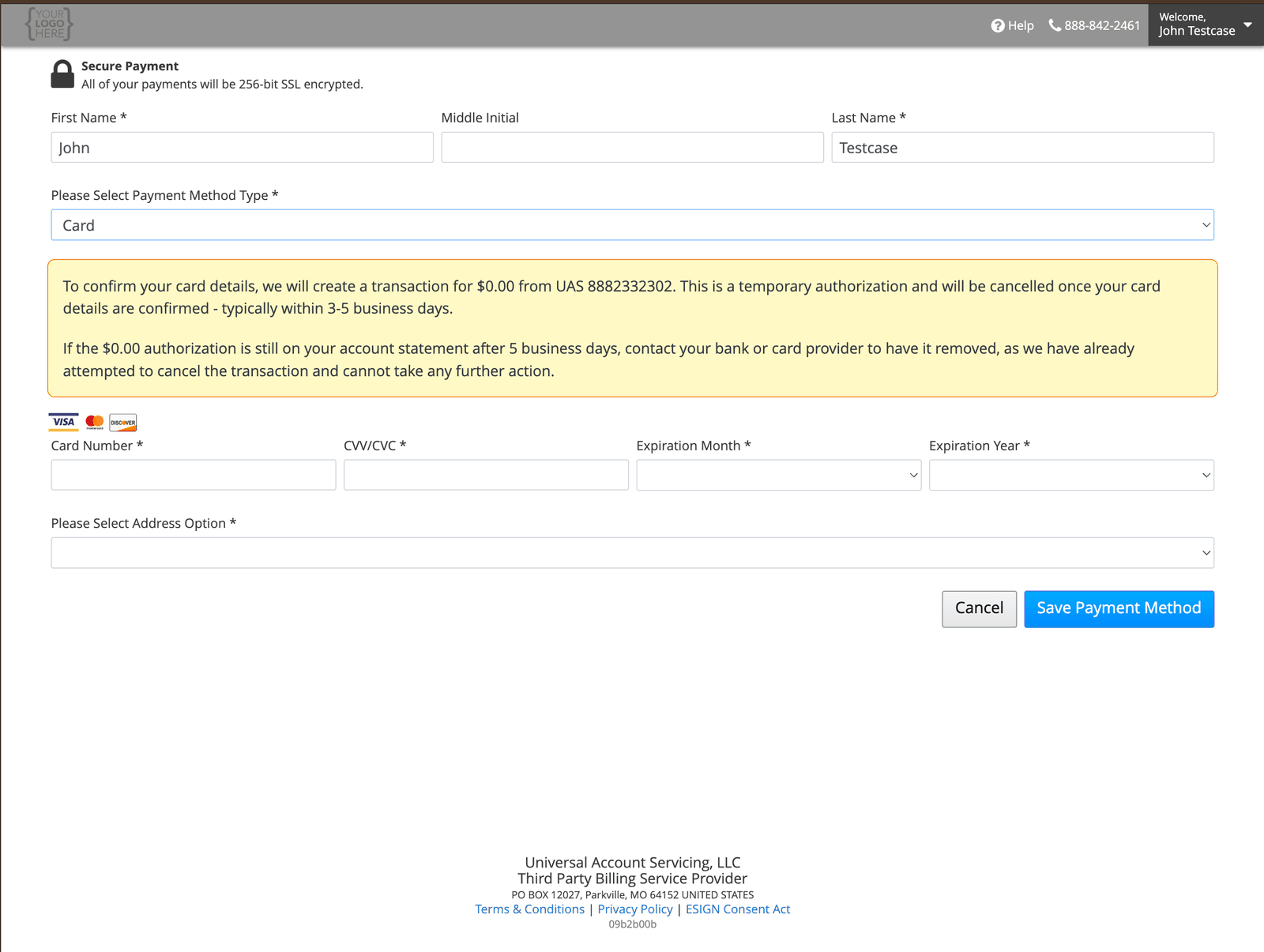 \*\*You may see a $0.00 charge from us.** When you add a card we run a temporary $0.00
authorization, shown as **UAS 8882332302**, to confirm the details. It is canceled automatically,
usually within 3–5 business days.
If it is still showing after five business days, contact your bank or card issuer — we have
already canceled it and cannot do more from our side.
## Changing one
The buttons do different things, and the difference is not obvious:
| Control | What it changes |
| ------------------------------- | --------------------------------------------------------------------------------------------------------------- |
| **Edit** (pencil) | Billing address only |
| **Copy and delete** (two pages) | Use this to change a **card number or expiration date** — it creates the updated method and removes the old one |
| **Delete** (red bin) | Removes the method entirely |
To change a card number, use copy-and-delete rather than Edit.
## If you cannot delete one
**A payment method used by AutoPay cannot be deleted.** You will get an error.
[Opt out of AutoPay](/autopay/opting-out) first, or
[switch AutoPay to a different method](/autopay/changing-autopay), then delete it.
## What we keep
Only the last four digits of your card or account number are stored in the portal, and your security
code is never stored. See [How we protect your information](/trust-and-compliance/how-we-protect-your-data).
## If your card is replaced
You may not need to do anything — see [Automatic card updates](/autopay/card-updater).
\*\*You may see a $0.00 charge from us.** When you add a card we run a temporary $0.00
authorization, shown as **UAS 8882332302**, to confirm the details. It is canceled automatically,
usually within 3–5 business days.
If it is still showing after five business days, contact your bank or card issuer — we have
already canceled it and cannot do more from our side.
## Changing one
The buttons do different things, and the difference is not obvious:
| Control | What it changes |
| ------------------------------- | --------------------------------------------------------------------------------------------------------------- |
| **Edit** (pencil) | Billing address only |
| **Copy and delete** (two pages) | Use this to change a **card number or expiration date** — it creates the updated method and removes the old one |
| **Delete** (red bin) | Removes the method entirely |
To change a card number, use copy-and-delete rather than Edit.
## If you cannot delete one
**A payment method used by AutoPay cannot be deleted.** You will get an error.
[Opt out of AutoPay](/autopay/opting-out) first, or
[switch AutoPay to a different method](/autopay/changing-autopay), then delete it.
## What we keep
Only the last four digits of your card or account number are stored in the portal, and your security
code is never stored. See [How we protect your information](/trust-and-compliance/how-we-protect-your-data).
## If your card is replaced
You may not need to do anything — see [Automatic card updates](/autopay/card-updater).