> ## Documentation Index
> Fetch the complete documentation index at: https://faq.universalaccountservicing.com/llms.txt
> Use this file to discover all available pages before exploring further.
# Enrolling in AutoPay
> Set up automatic monthly payments in uPortal360, including paying more than your minimum.
You will need a saved card or bank account. If you do not have one yet, you can add it during
enrollment — see [Managing your saved payment methods](/payments/managing-payment-methods).
## Set it up
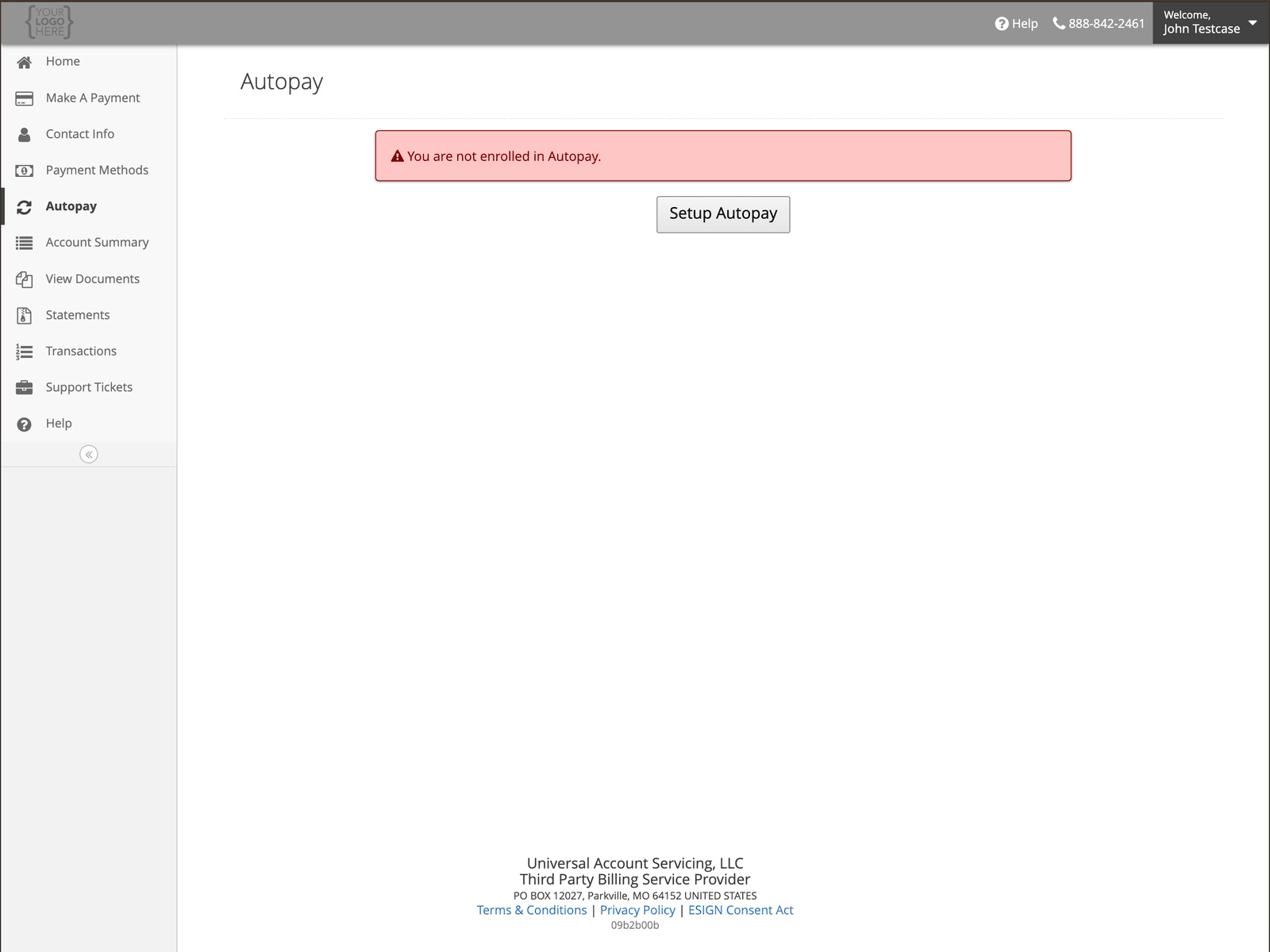
Sign in to uPortal360, open the menu and select **Autopay**. If you are not enrolled you will
see **Setup Autopay**.
 Pick a saved card or bank account, or select **Add Payment Method**.
This is when your first automatic payment will be taken. After that it follows your due date
each month.
**Minimum Payment** takes whatever your minimum is that month, so it adjusts if your minimum
changes.
**Override Amount** takes a fixed amount you set instead. It must be **more than** your minimum
monthly payment.
Pick a saved card or bank account, or select **Add Payment Method**.
This is when your first automatic payment will be taken. After that it follows your due date
each month.
**Minimum Payment** takes whatever your minimum is that month, so it adjusts if your minimum
changes.
**Override Amount** takes a fixed amount you set instead. It must be **more than** your minimum
monthly payment.
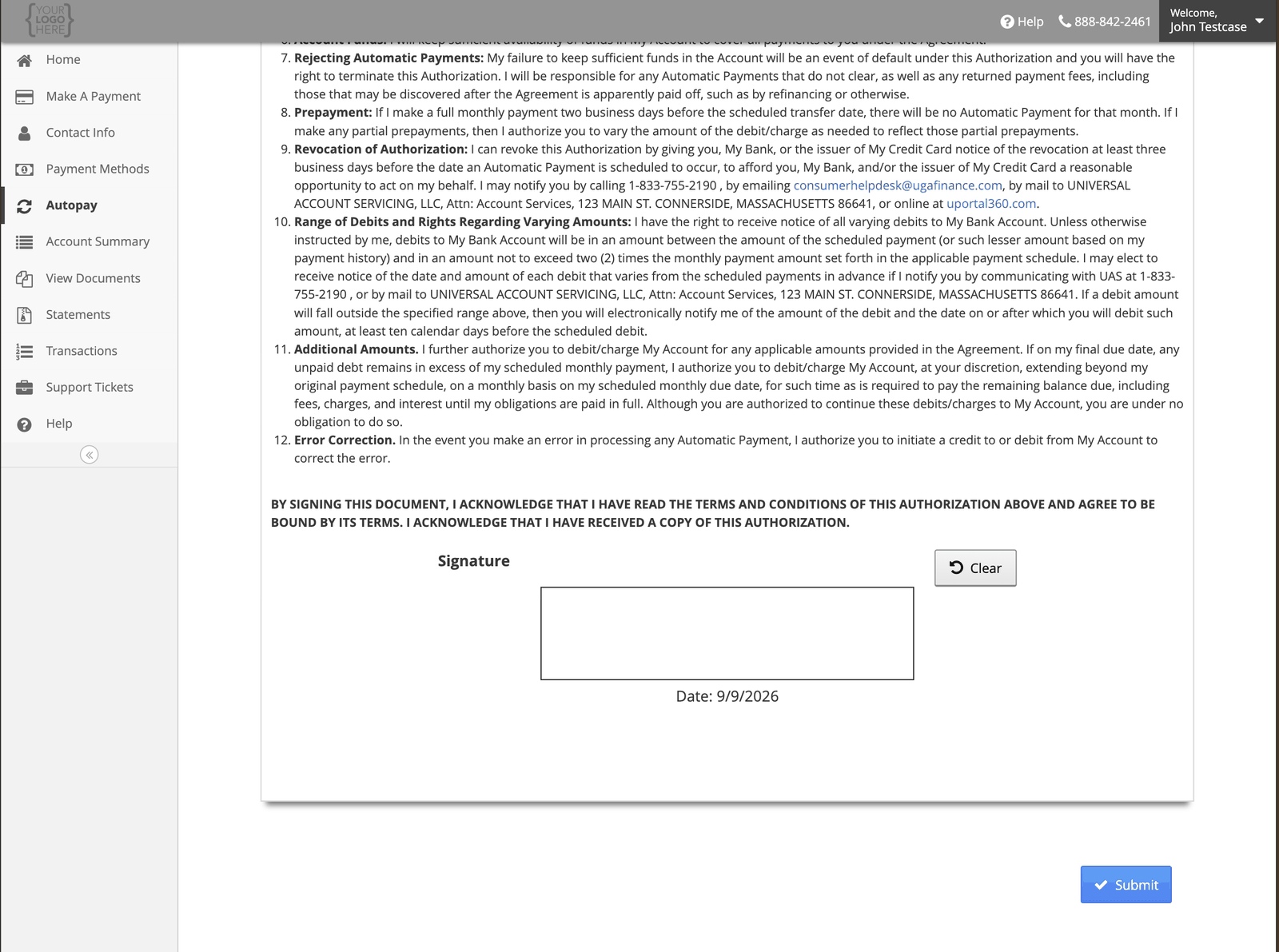
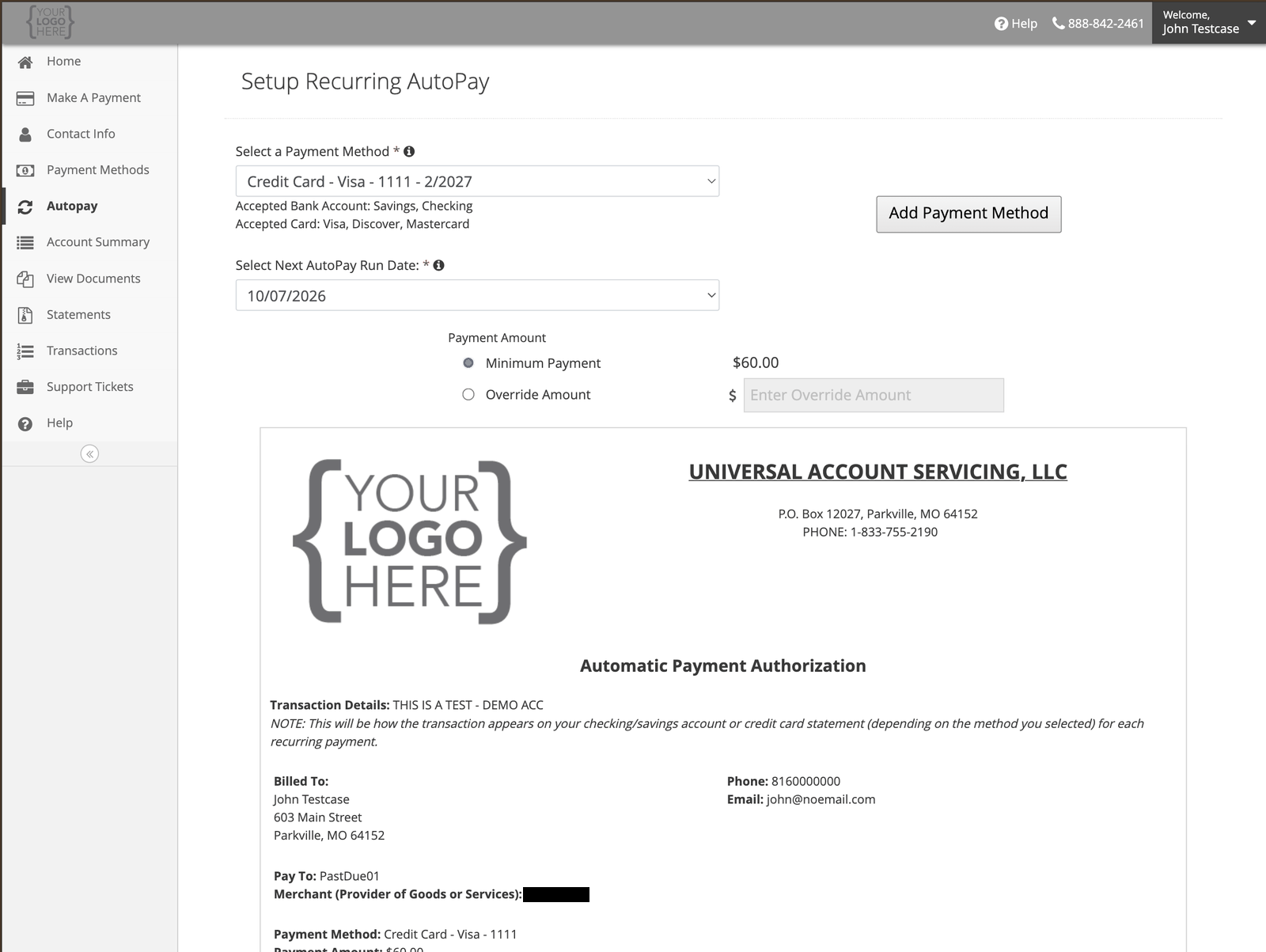 The authorization sets out what you are agreeing to. Sign in the box — with your finger on a
phone or tablet, or by holding down the mouse button and drawing.
The authorization sets out what you are agreeing to. Sign in the box — with your finger on a
phone or tablet, or by holding down the mouse button and drawing.
 You will see a confirmation once it is set up, and your Payment Methods page will show an
**AUTO PAY** badge against the method you chose.
## What you are agreeing to
Worth knowing before you sign, because it is not obvious from the screen:
| | |
| ------------------------------------- | --------------------------------------------------------------------------------------------------------------------------------------------------------------------------------------- |
| **How much can be taken** | Between your scheduled payment amount and **no more than twice** your monthly payment. If an amount would fall outside that range, we tell you at least **10 calendar days** beforehand |
| **When it runs** | On your due date, every time. AutoPay runs seven days a week — it is never taken early, and never late |
| **If you pay early** | A full monthly payment made **two business days** before your scheduled date means no AutoPay runs that month |
| **If it is returned** | A returned payment fee applies, and we may re-attempt the same amount up to two more times |
| **After your final payment** | If a balance remains, we may continue taking payments on the same schedule until it is paid |
| **You get a copy** | We have to give you a copy of the authorization you signed. It is filed under **View Documents** — see [Your agreement and account details](/statements/agreement-details) |
| **You can stop it whenever you like** | In the portal, by phone, by email or in writing, and it takes effect straight away — see [Opting out](/autopay/opting-out) |
**Before your first payment you should know the amount, the date, and how often it will run.** All
three are on the setup screen and in the copy of the authorization. If anything on the copy does
not match what you chose, [tell us](/getting-help/contacting-uas) before the first payment date.
## Paying off a promotional balance
If you are trying to clear a [promotional offer](/promotional-offers) before it expires, set an
**override amount** rather than the minimum. Work out what you need from your Amount Financed and
expiration date — see
[Why the minimum payment is not enough](/promotional-offers#why-the-minimum-payment-is-not-enough).
Turn on the **AutoPay** e-alert at the same time and you will get an email each time a payment is
scheduled or taken. See [Alerts and paperless statements](/signing-in/alerts-and-paperless).
You will see a confirmation once it is set up, and your Payment Methods page will show an
**AUTO PAY** badge against the method you chose.
## What you are agreeing to
Worth knowing before you sign, because it is not obvious from the screen:
| | |
| ------------------------------------- | --------------------------------------------------------------------------------------------------------------------------------------------------------------------------------------- |
| **How much can be taken** | Between your scheduled payment amount and **no more than twice** your monthly payment. If an amount would fall outside that range, we tell you at least **10 calendar days** beforehand |
| **When it runs** | On your due date, every time. AutoPay runs seven days a week — it is never taken early, and never late |
| **If you pay early** | A full monthly payment made **two business days** before your scheduled date means no AutoPay runs that month |
| **If it is returned** | A returned payment fee applies, and we may re-attempt the same amount up to two more times |
| **After your final payment** | If a balance remains, we may continue taking payments on the same schedule until it is paid |
| **You get a copy** | We have to give you a copy of the authorization you signed. It is filed under **View Documents** — see [Your agreement and account details](/statements/agreement-details) |
| **You can stop it whenever you like** | In the portal, by phone, by email or in writing, and it takes effect straight away — see [Opting out](/autopay/opting-out) |
**Before your first payment you should know the amount, the date, and how often it will run.** All
three are on the setup screen and in the copy of the authorization. If anything on the copy does
not match what you chose, [tell us](/getting-help/contacting-uas) before the first payment date.
## Paying off a promotional balance
If you are trying to clear a [promotional offer](/promotional-offers) before it expires, set an
**override amount** rather than the minimum. Work out what you need from your Amount Financed and
expiration date — see
[Why the minimum payment is not enough](/promotional-offers#why-the-minimum-payment-is-not-enough).
Turn on the **AutoPay** e-alert at the same time and you will get an email each time a payment is
scheduled or taken. See [Alerts and paperless statements](/signing-in/alerts-and-paperless).